Monday, 13 January 2025

Diophantine linear equation solver in C#

Diophantine linear equations are equations of two unkowns on the format

ax + by = c

The code below shows how we can solve Diophantine equations with a sample equation :

7x - 9y = 3

DiophantineSolver.cs


class Program
{
	static void Main()
	{
		int a = 7,
		b = -9, 
		c = 3;
		DiophantineSolver.DiophantineSolution solution = DiophantineSolver.ExtendedGcd(a, b, c);

		Console.WriteLine(solution.ToString());
	}
}

/// <summary>
/// Class containing methods to solve Diophantine equations using the Extended Euclidean Algorithm.
/// </summary>
class DiophantineSolver
{
	/// <summary>
	/// Struct to hold the solution of a Diophantine equation.
	/// </summary>
	public struct DiophantineSolution
	{
		/// <summary>
		/// Indicates whether the equation has a solution.
		/// </summary>
		public bool IsSolvable { get; set; }

		/// <summary>
		/// X0, a articular solution for variable x, or null if no solution exists. Other solutions of X can be derived from this.
		/// </summary>
		public int? X0 { get; set; }

		/// <summary>
		/// Y0, a particular solution, or null if no solution exists. Other solutions of Y can be derived from this.
		/// </summary>
		public int? Y0 { get; set; }

		/// <summary>
		/// The coefficient of x in the equation.
		/// </summary>
		public readonly int A;

		/// <summary>
		/// The coefficient of y in the equation.
		/// </summary>
		public readonly int B;

		/// <summary>
		/// The constant term in the equation.
		/// </summary>
		public readonly int C;
		
		/// <summary>D: The greatest common divisor gcd(a,b) = d</summary>
		/// <remarks>Solutions to the Diophantine linear equation exists only if C|D: D is divisible by C.</remarks>
		public readonly int? D;

		/// <summary>
		/// Initializes a new instance of the DiophantineSolution struct.
		/// </summary>
		/// <param name="isSolvable">Indicates whether the equation has a solution.</param>
		/// <param name="x0">The x-coordinate of the particular solution.</param>
		/// <param name="y0">The y-coordinate of the particular solution.</param>
		/// <param name="a">The coefficient of x in the equation.</param>
		/// <param name="b">The coefficient of y in the equation.</param>
		/// <param name="c">The constant term in the equation.</param>
		/// <param name="d">The d= gcd(a,b) greatest common divisor found for a and b</param>
		public DiophantineSolution(bool isSolvable, int? x0, int? y0, int a, int b, int c, int d)
		{
			IsSolvable = isSolvable;
			X0 = x0;
			Y0 = y0;
			A = a;
			B = b;
			C = c;
			D = d;
		}

		/// <summary>
		/// Returns a string representation of the solution.
		/// </summary>
		/// <returns>A string representation of the solution.</returns>
		public override string ToString()
		{
			if (IsSolvable)
			{
				string result = $"""
				Diophantine Linear Equation Solver result for equation 
				AX + BY = C
				{A}x + {B}y = {C} 
				A={A}, B={B}, C={C}
				Greatest common divisor :
				d = gcd(a,b) = {D?.ToString() ?? "No gcd found"}
				Solutions exists? {IsSolvable}, since d|c = {D}|{C}: {C} is divisible by {D}
				Particular solution A(x0) + B(y0) = C
				x0 = {X0}, y0 = {Y0}
				({A}*{X0}) + ({B}*{Y0}) = {C}
				({A * X0}) + ({B * Y0}) = {C}
				Generalized solution:				
				{GetParameterizedSolution()}
				Additional solutions:
				""";
				if (D > 0)
				{
					for (int t = 1; t <= 3; t++)
					{
						int xn = X0!.Value + (B / D!.Value) * t;
						int yn = Y0!.Value - (A / D!.Value) * t;
						result += $"\nSolution {t}: x = {xn}, y = {yn} (t = {t}) , since : ({xn}*{X0}) + ({yn}*{Y0}) = ({xn * X0}) + ({yn * Y0}) = {C}";
					}
				}
				else {
					result += "No additional solutions exists"; 
				}
				return result;
			}
			else
			{
				return $"Diophantine Linear Equation Solver result\nNo solution exists. d = gcd(a,b) = {D}. Solution exists if: {C}|{D}. This gives a remainder of {C % D} != 0. {C} is not divisible by {D}. C = {C} = n*D + r = ({C / D}*{D}) + {C % D}.";
			}
		}

		/// <summary>
		/// Returns the parameterized solution expression as a string.
		/// </summary>
		/// <returns>A string representation of the parameterized solution.</returns>
		public string GetParameterizedSolution()
		{
			if (D == 0){
				return "No solution exists, so there is not general parameterized solution";
			}
			string generalEquation = "x' = x_0 + (B/D), y' = y_0 - (A/D)";
			return $"{generalEquation}{Environment.NewLine}x' = {X0} + ({B}/{D})t, y' = {Y0} - ({A}/{D})t, where t is any integer";
		}
	}

	/// <summary>
	/// Solves the Diophantine equation ax + by = c using the Extended Euclidean Algorithm.
	/// </summary>
	/// <param name="a">The coefficient of x.</param>
	/// <param name="b">The coefficient of y.</param>
	/// <param name="c">The constant term.</param>
	/// <returns>A DiophantineSolution struct containing the solution.</returns>
	public static DiophantineSolution ExtendedGcd(int a, int b, int c)
	{
		int X0, Y0;
		int gcd = ExtendedGcd(a, b, out X0, out Y0);

		if (c % gcd != 0)
		{
			return new DiophantineSolution(false, null, null, a, b, c, gcd);
		}
		else
		{
			int x = X0 * (c / gcd);
			int y = Y0 * (c / gcd);
			return new DiophantineSolution(true, x, y, a, b, c, gcd);
		}
	}

	/// <summary>
	/// Computes the greatest common divisor of a and b, and finds coefficients X0 and Y0 such that a*X0 + b*Y0 = gcd(a, b).
	/// </summary>
	/// <param name="a">The first integer.</param>
	/// <param name="b">The second integer.</param>
	/// <param name="X0">The coefficient of a in the linear combination.</param>
	/// <param="Y0">The coefficient of b in the linear combination.</param>
	/// <returns>The greatest common divisor of a and b.</returns>
	private static int ExtendedGcd(int a, int b, out int X0, out int Y0)
	{
		if (b == 0)
		{
			X0 = 1;
			Y0 = 0;
			return a; // Base case: gcd(a, 0) = a
		}

		int X1, Y1;
		int gcd = ExtendedGcd(b, a % b, out X1, out Y1); // Recursive call

		X0 = Y1; // Back substitution: X0 = Y1
		Y0 = X1 - (a / b) * Y1; // Back substitution: Y0 = X1 - (a / b) * Y1

		return gcd; // Return the gcd
	}
}


The extended Euclidean algorithm calculates the greatest common divisor and in the recursion also applies back substitution. The coefficients X0 and Y0 founds satisfy the equation :

(a · X0) + (b · Y0) = gcd(a, b)


That is, a linear combination of the original integers a and b equaling the gcd(a,b). The output of running the code shown above is:


Diophantine Linear Equation Solver result for equation
AX + BY = C
7x + -9y = 3
A=7, B=-9, C=3
Greatest common divisor :
d = gcd(a,b) = 1
Solutions exists? True, since d|c = 1|3: 3 is divisible by 1
Particular solution A(x0) + B(y0) = C
x0 = 12, y0 = 9
(7*12) + (-9*9) = 3
(84) + (-81) = 3
Generalized solution:               
x' = x_0 + (B/D), y' = y_0 - (A/D)
x' = 12 + (-9/1)t, y' = 9 - (7/1)t, where t is any integer
Additional solutions:
Solution 1: x = 3, y = 2 (t = 1) , since : (3*12) + (2*9) = (36) + (18) = 3
Solution 2: x = -6, y = -5 (t = 2) , since : (-6*12) + (-5*9) = (-72) + (-45) = 3
Solution 3: x = -15, y = -12 (t = 3) , since : (-15*12) + (-12*9) = (-180) + (-108) = 3

So an example of a solution of the equation : 7x -9y = 3 Is: x = 12, y = 9, since (7*12) - (9*9) = 84 - 81 = 3. Note that once you have found a solution to a linear Diophantine equation, you can found infinite other solutions. More formally:

Diophantine Equation (Linear) Definition and Solvability

A linear Diophantine equation is an equation of the form:

(a · x) + (b · y) = c

where a, b, and c are integers, and x and y are unknown integers.

Solvability

The linear Diophantine equation (a · x) + (b · y) = c has integer solutions if and only if the greatest common divisor (gcd) of a and b divides c. In mathematical notation:

d is gcd. d|c => gcd(a, b) | c

If gcd(a, b) divides c (it is common to use d to notify gcd as a short term notation), then there exist integer solutions x and y such that:

(a · x) + (b · y) = c

Otherwise, there are no integer solutions.

Sunday, 5 January 2025

Euclidean algorithm in C# to find GCD and LCM

I am reading my Elementary Number Theory book by David M. Burton for a course i took at University, MNFMA104 Tallteori at NTNU in Trondheim. I like Number Theory in Math a lot and will look into writing some C# code, starting with this article. This article will look at how we can find the greatest common divisor (gcd). Mathematically speaking, the definition is the following:

Greatest Common Divisor (GCD)

Given two integers a and b, their greatest common divisor (GCD), denoted as d, is the largest positive integer that divides both a and b without leaving a remainder. Note that divides here means there is no remainer.

Formally, if d = gcd(a, b), then:

  1. d divides both a and b. This means d | a and d | b.
  2. If there is any other integer c that divides both a and b, then c ≤ d. This ensures that d is the greatest such integer.

For example the numbers 12 and 8 can be divided by 4. And we will see that d = gcd(12,8) = 4 next. But first, let's look at the Euclidean algorithm mathematical definition.

Euclidean Algorithm for GCD

Given two integers a and b (where a ≥ b > 0), their greatest common divisor (GCD), denoted as d, can be found using the Euclidean algorithm. The process is as follows:

  1. Let a and b be two integers such that a ≥ b and b > 0.
  2. Define a sequence of equations r0, r1, r2, …, where r0 = a and r1 = b.
  3. For i ≥ 0, compute ri+2 using the division algorithm:
    ri+2 = ri mod ri+1
  4. Continue this process until rn+1 = 0 for some integer n. At this point:
    d = rn = gcd(a, b)

In summary, the GCD of a and b is the last non-zero remainder obtained through this iterative process:

gcd(a, b) = d


Let's look at C# code to calculate the GDC, we will use the Euclidean algorithm to calculate it.

int Gcd(int a, int b)
{
	int q_n = Math.Abs(a);
	int r_n = Math.Abs(b);
	while (r_n != 0)
	{
		int remainder = q_n % r_n;
		q_n = r_n;
		r_n = remainder;
	}
	return q_n; // returning here the second-last quotient that was non-zero, which is the gcd
}

Calculating the gcd of 12 and 8 gives:

void Main()
{
	int a = 8;
	int b = 12;
	int gcd = Gcd(a, b);
	Console.WriteLine($"Demo - The greatest common divisor - GCD - using the Euclidean algorithm of the numbers : ");
	Console.WriteLine($"d = gcd({a}, {b}) = {gcd}");
    
}

//output 
// Demo - The greatest common divisor - GCD - using the Euclidean algorithm of the numbers : 
// d= gcd(8, 12) = 4


We can also calculate gcd of some bigger numbers. For example, the gcd of the numbers a= 5040 and b = 3780 are 1260. Both numbers 5040 and 3780 are divisible by 1260. We can also use C# patterns in case we want to apply a more functional approach. Together with tuples and C# patterns, the code becomes very compact, especially when we use recursion and tuples to compose the current state of the currend dividend and divisor, the two numbers we consider and get the remainder from.


<summary>
Calculate the greatest common divisor. Recursive C# pattern of GCD (using 'state approach' for tuple)
</summary>
int Gcd(int a, int b) => (a, b) switch
{
    (0, _) => Math.Abs(b),
    (_, 0) => Math.Abs(a),
    _ => Gcd(b, a % b)
};


Calculating if two number are coprimes

Let's turn attention to coprime numbers a bit. It is a consequence that if the gcd of two numbers a and b, they are said to be relatively prime, or coprime.

In mathematical terms, two integers a and b are said to be coprime (or relatively prime) if their greatest common divisor (gcd) is 1.

Formally, given two integers a and b, a and b are coprime if:

gcd(a, b) = 1

This definition means that the only positive integer that divides both a and b is 1. In other words, they have no common prime factors.

For example, the numbers a = 1234, b = 3417 can be tested if they are coprimes, by calculating the gcd and if the gcd is 1, they are coprime. They have no other common factors than 1, i.e. they are both coprimes or relatively prime. Let's first define a method in C# :

bool AreCoprime(int a, int b) => Gcd(a,b) == 1; 

We can then verify that a = 1234, b = 3417 are relatively prime and the two numbers are relatively prime.

int a1 = 1234, b1 = 3417;
Console.WriteLine($"\nDemo - If two numbers - GCD - are equal to 1, they are co-primes (relative primes)  : ");
Console.WriteLine($"Are {a1} and {b1} coprime? {AreCoprime(a1, b1)}");

The output is:

Demo - If two numbers - GCD - are equal to 1, they are co-primes (relative primes)  : 
Are 1234 and 3417 coprime? True

Calculating the least common multiple (lcm)

The least common multiple - lcm - can be calculated from the gcd for two numbers a and b. The mathematical definition is this:

In mathematics, the least common multiple (LCM) of two integers a and b is the smallest positive integer m such that both a and b divide m without leaving a remainder. Formally, it can be defined as:

LCM(a, b) = |a · b| / GCD(a, b)

where GCD(a, b) is the greatest common divisor of a and b.

Consider the gcd of a= 5040 and b = 3780. We found that the gcd for the two numbers is : gcd(5040, 3780) = 1260 Here is the code for calculating the lcm:

int Lcm(int a, int b) => (a*b)/Gcd(a,b);


int lcm = Lcm(a,b);
Console.WriteLine($"Demo - Least common multiple - lcm: ");	
Console.WriteLine($"lcmd({a}, {b}) = {lcm}");

This outputs:

Demo - Least common multiple - lcm: 
lcm(5040, 3780) = 15120

The number 15120 above is divisible by both a and b, giving 3 and 4 and no remainder, and it is the lowest number which is both divisible, that is - no integer remainder from the division. We write this if we use m for lcm as : m | a and m | b. To calculate the lcm for multiple numbers, we can use:

int Lcm(int[] numbers) { 
	return numbers.Aggregate((a,b) => Lcm(a,b)); 
}

Note that Aggregate method here (from Linq) does not sum, but fold In functional programming, the term "fold" is often used to describe the process of reducing a collection of elements to a single value by iteratively applying a function. In C#, the Aggregate method is essentially a fold operation, as it reduces the array of numbers to a single value (in this case, the GCD or LCM) by applying the specified function. So, using Aggregate to calculate the GCD or LCM of multiple numbers is indeed an example of a fold operation. Example:

int a = 5040;
int b = 3780;
int c = 2520;
Console.WriteLine($"Demo - Least common multiple - lcm: ");
Console.WriteLine($"lcm({a}, {b}, {c}) = {lcm}");

Output is: Demo - Least common multiple - lcm: lcm(5040, 3780, 2520) = 15120

Saturday, 4 January 2025

Slider component for Blazor

I have added a Blazor component for Blazor, which uses INPUT of type range and additional CSS styling for more flexible setup of look and feel. The Blazor component is available on Github in my repo here:

https://github.com/toreaurstadboss/BlazorSlider

Blazor lib component

This repository contains Blazor lib Slider component that shows an input of type 'range'.

The slider got default horizontal layout, where the minimum value for the slider is shown to the most left of the scale, which goes along the x-axis for the slider got towards higher values and the maximum value is the value to the most right. The slider x-axis goes along the 'slider track'.

The value of the slider is indicated by the 'slider thumb'. Below the slider are shown 'tick marks', which are controlled by the Minimum and Maximum values and StepSize. Note that the supported data types are the data types that are IConvertible and struct, and the code expects types that can be converted to double. You can use integers for example, but also decimals or floats and so on. In addition, enums can be used, but it works only if your enum got consecutive values, for example 0,1,2,3,4 . The best results are if these consecutive values got the same StepSize. To start using the Blazor slider, add this using in your .razor file where you want to use the component.
 
@using BlazorSliderLib

Please note that the slider has been tested using Bootstrap, more specifically this version:

"bootstrap@5.3.3"
Here is sample markup you can add to test out the Blazor slider (3 sliders are rendered using a custom model and the updated values are shown in labels below :

    <div class="container"> 

        <div class="row">
            <div class="form-control col-md-4">
                <p><b>EQ5D-5L question 1.</b> <br />Mobility. Ability to walk.</p>
                <BlazorSliderLib.Slider T="Eq5dWalk" UseAlternateStyle="AlternateStyle.AlternateStyleInverseColorScale" Title="Ability to walk" ValueChanged="@((e) => UpdateEq5dQ1(e))"
                MinimumDescription="No Problems = The best ability to walk you can imagine" MaximumDescription="Incapable = The worst ability to walk you can imagine" />
            </div>
        </div>

        <div class="row">
            <div class="form-control col-md-4">
                <p><b>EQ5D-5L question 6.</b> <br />We would like to how good or bad your health is TODAY.</p>
            </div>
        </div>

        <div class="row">
            <div class="form-control col-md-4">
                <BlazorSliderLib.Slider T="int" UseAlternateStyle="AlternateStyle.AlternateStyle" Minimum="0" Maximum="100" @bind-Value="@(Model.Data.Eq5dq6)" Stepsize="5" Title="Your health today"
                MinimumDescription="0 = The worst health you can imagine" MaximumDescription="100 = The best health you can imagine" />
            </div>
        </div>

        <div class="row">
            <div class="form-control col-md-4">
                <p><b>EQ5D-5L question 6.</b> <br />We would like to how good or bad your health is TODAY. V2 field.</p>
            </div>
        </div>

        <div class="row">
            <div class="form-control col-md-4">
                <BlazorSliderLib.Slider T="int" Minimum="0" Maximum="100" ValueChanged="@((e) => UpdateEq5dq6V2(e))" Stepsize="5" Title="Your health today (v2 field)"
                MinimumDescription="0 = The worst health you can imagine" MaximumDescription="100 = The best health you can imagine" />
            </div>
        </div>

        <div class="row">
            <div class="form-control col-md-4">
                <p>Value of Model.Data.Eq5dq1</p>
                @Model.Data.Eq5dq1
            </div>
        </div>

        <div class="row">
            <div class="form-control col-md-4"> <p>Value of Model.Data.Eq5d6</p>
                @Model.Data.Eq5dq6 
            </div> 
        </div>

        <div class="row">
            <div class="form-control col-md-4">
                <p>Value of Model.Data.Eq5d6V2</p>
                @Model.Data.Eq5dq6V2
            </div>
        </div>

    </div>

The different setup of sliders

The slider is set up either with an alternate style or using the default styling for sliders, that is, the slider uses an input type of 'range' and the default documented styling on Mozilla Developer Network (MDN) to render a Blazor slider. In addition, it is possible to set up the alternate style to use a inverted color range where higher values will get a reddish color and lower values will get a greenish color. The standard alternate style will show greenish colors for higher values. The following screenshot shows the possible styling that is possible. Note that the default styling is shown in the slider at the bottom, which will render a bit different in different browsers. In Chrome for example, the slider will render with a bluish color. In Edge Chromium, a grayish color is used for the 'slider tick' and 'slider thumb'. Screenshots showing the sliders: The following parameters can be used:
Title
Required. The title is shown below the slider component and centered horizontally along the center of the x-axis which the slider is oriented.
Value
The value of the slider. It can be data bound using either the @bind-Value directive attribute that supports two-way data binding. You can instead use the @ValueChanged event callback, if desired.
Minimum
The minimum value along the slider. It is default set to 0 for numbers. For enums, the lowest value is chosen of the enum (minimum enum alternative, converted to double internally).
Maximum
The maximum value along the slider. It is default set to 100 for numbers. For enums, the higheset value is chosen of the enum (maximum enum alternative, converted to double internally).
Stepsize
The step size for the slider. It is default set to 5 for numbers. For enums, it is set to 1. (note that internally the slider must use double values to work with the _tickmarks_, which expects double values).
ShowTickmarks
Shows tick marks for slider. It is default set to 'true'. Tick marks are generated from the values of Minimum, Maximum and StepSize.
MinimumDescription
Shows additionally description for the minimum value, shown as a small label below the slider. It will only be shown in the value is not empty.
UseAlternateStyle
If the UseAlternateStyle is set to either AlternateStyle and AlternateStyleInverseColorScale, alternate styling is used.

CSS rules to enable the slider

Actually, it is necessary to define a set of CSS rules to make the slider work. The slider's css rules are defined in two different files.

Default CSS rules

`Slider.css` The CSS rules below are taken from MDN Mozilla Developer Network page for the input type 'range' control. Input type 'range' control MDN article:

https://developer.mozilla.org/en-US/docs/Web/HTML/Element/input/range

Additional settings are set up. The width is set to 100% so the slider can get as much horizontal space as possible and 'stretch'. There are also basic styles set up for both the tick label and datalist.The datalist is the tickmarks for the slider. The tick marks are automatically generated for the slider.


.sliderv2
{
    width:100%;
}

.sliderv2Label {
    font-weight: 400;
    text-align: center;
    left: 50%;
    font-size:0.7em;
    font-family: -apple-system, BlinkMacSystemFont, "Segoe UI", Roboto, "Helvetica Neue", Arial, margin-bottom: 2px;
}

datalist {
    display: flex;
    flex-direction: column;
    justify-content: space-between;
    writing-mode: vertical-lr;
    width: 100%;
}

.tick-label {

    justify-content: space-between;
    font-size:0.6em;

    top: 20px; /* Adjust this value as needed */
}

input[type="range"] {
    width: 100%;
    margin: 0;
}


Alternate CSS rules

`SliderAlternate.css` The alternate CSS rules are setting up additional styling, where color encoding is used for the 'slider track' where higher values along the 'slider track' get a more 'greenish color', while lower values gets 'reddish values'. It is possible to set up the inverse color encoding here, with higher values getting 'reddish color'. Lower values gets more 'greenish colors' in this setup.


.alternate-style input[type="range"] {
    -webkit-appearance: none; /* Remove default styling */
    width: 100%;
    height: 8px;
    background: #ddd;
    outline: none;
    opacity: 0.7;
    transition: opacity .2s;
}

    .alternate-style input[type="range"]:hover {
        opacity: 1;
    }

    .alternate-style input[type="range"]::-webkit-slider-runnable-track {
        width: 100%;
        height: 8px;
        background: linear-gradient(to left, #A5D6A7, #FFF9C4, #FFCDD2); /* More desaturated gradient color */
        border: none;
        border-radius: 3px;
    }

        .alternate-style-inverse-colorscale input[type="range"]::-webkit-slider-runnable-track {
            background: linear-gradient(to right, #A5D6A7, #FFF9C4, #FFCDD2) !important; /* More desaturated gradient color, inverted color range */
        }


.alternate-style input[type="range"]::-webkit-slider-thumb {
    -webkit-appearance: none; /* Remove default styling */
    appearance: none;
    width: 25px;
    height: 25px;
    background: #2E7D32; /* Even darker green thumb color */
    cursor: pointer;
    border-radius: 50%;
    margin-top: -15px !important; /* Move the thumb up */
}

    .alternate-style input[type="range"]::-moz-range-track {
        width: 100%;
        height: 8px;
        background: linear-gradient(to left, #A5D6A7, #FFF9C4, #FFCDD2); /* More desaturated gradient color */
        border: none;
        border-radius: 3px;
    }

        .alternate-style-inverse-colorscale input[type="range"]::-moz-range-track {
            background: linear-gradient(to right, #A5D6A7, #FFF9C4, #FFCDD2 !important; /* More desaturated gradient color, inverted color range */
        }

    .alternate-style input[type="range"]::-moz-range-thumb {
        width: 25px;
        height: 25px;
        background: #2E7D32; /* Even darker green thumb color */
        cursor: pointer;
        border-radius: 50%;
        transform: translateY(-15px); /* Move the thumb up */
    }


The implementation for the Blazor slider looks like this, in the codebehind file for the Slider:


using Microsoft.AspNetCore.Components;

namespace BlazorSliderLib
{

    /// <summary>
    /// Slider to be used in Blazor. Uses input type='range' with HTML5 element datalist and custom css to show a slider.
    /// To add tick marks, set the <see cref="ShowTickmarks"/> to true (this is default)
    /// </summary>
    /// <typeparam name="T"></typeparam>
    public partial class Slider<T> : ComponentBase
        where T : struct, IComparable
    {

        /// <summary>
        /// Initial value to set to the slider, data bound so it can also be read out
        /// </summary>
        [Parameter]
        public T Value { get; set; }

        public double ValueAsDouble { get; set; }

        public double GetValueAsDouble()
        {
            if (typeof(T).IsEnum)
            {
                if (_isInitialized)
                {
                    var e = _enumValues.FirstOrDefault(v => Convert.ToDouble(v).Equals(Convert.ToDouble(Value)));
                    return Convert.ToDouble(Convert.ChangeType(Value, typeof(int)));
                }
                else
                {
                    return 0;
                }
            }
            else
            {
                return Convert.ToDouble(Value);
            }
        }        

        [Parameter, EditorRequired]
        public required string Title { get; set; }

        [Parameter]
        public string? MinimumDescription { get; set; }

        [Parameter]
        public string? MaximumDescription { get; set; }

        [Parameter]
        public double Minimum { get; set; } = typeof(T).IsEnum ? Enum.GetValues(typeof(T)).Cast<int>().Select(e => Convert.ToDouble(e)).Min() : 0.0;

        [Parameter]
        public double Maximum { get; set; } = typeof(T).IsEnum ? Enum.GetValues(typeof(T)).Cast<int>().Select(e => Convert.ToDouble(e)).Max() : 100.0;

        [Parameter]
        public double? Stepsize { get; set; } = typeof(T).IsEnum ? 1 : 5.0;

        [Parameter]
        public bool ShowTickmarks { get; set; } = true;

        [Parameter]
        public AlternateStyle UseAlternateStyle { get; set; } = AlternateStyle.None;

        [Parameter]
        public EventCallback<T> ValueChanged { get; set; }

        public List<double> Tickmarks { get; set; } = new List<double>();

        private List<T> _enumValues { get; set; } = new List<T>();

        private bool _isInitialized = false;

        private async Task OnValueChanged(ChangeEventArgs e)
        {
            if (e.Value == null)
            {
                return;
            }
            if (typeof(T).IsEnum && e.Value != null)
            {
                var enumValue = _enumValues.FirstOrDefault(v => Convert.ToDouble(v).Equals(Convert.ToDouble(e.Value))); 
                if (Enum.TryParse(typeof(T), enumValue.ToString(), out _)) {
                    Value = enumValue; //check that it was a non-null value set from the slider
                }
                else
                {
                    return; //if we cannot handle the enum value set, do not process further
                }
            }
            else
            {
                Value = (T)Convert.ChangeType(e.Value!, typeof(T));
            }

            ValueAsDouble = GetValueAsDouble();

            await ValueChanged.InvokeAsync(Value);
        }


        private string TickmarksId = "ticksmarks_" + Guid.NewGuid().ToString("N");

        protected override async Task OnParametersSetAsync()
        {
            if (_isInitialized)
            {
                return ; //initialize ONCE 
            }

            if (!typeof(T).IsEnum && Value.CompareTo(0) == 0)
            {
                Value = (T)Convert.ChangeType((Convert.ToDouble(Maximum) - Convert.ToDouble(Minimum)) / 2, typeof(T));
                ValueAsDouble = GetValueAsDouble();
            }

            if (Maximum.CompareTo(Minimum) < 1)
            {
                throw new ArgumentException("The value for parameter 'Maximum' is set to a smaller value than {Minimum}");
            }
            GenerateTickMarks();

            BuildEnumValuesListIfRequired();

            _isInitialized = true;

            await Task.CompletedTask;
        }

        private void BuildEnumValuesListIfRequired()
        {
            if (typeof(T).IsEnum)
            {
                foreach (var item in Enum.GetValues(typeof(T)))
                {
                    _enumValues.Add((T)item);
                }
            }
        }

        private void GenerateTickMarks()
        {
            Tickmarks.Clear();
            if (!ShowTickmarks)
            {
                return;
            }
            if (typeof(T).IsEnum)
            {
                int enumValuesCount = Enum.GetValues(typeof(T)).Length;
                double offsetEnum = 0;
                double minDoubleValue = Enum.GetValues(typeof(T)).Cast<int>().Select(e => Convert.ToDouble(e)).Min();
                double maxDoubleValue = Enum.GetValues(typeof(T)).Cast<int>().Select(e => Convert.ToDouble(e)).Max();
                double enumStepSizeCalculated = (maxDoubleValue - minDoubleValue) / enumValuesCount;

                foreach (var enumValue in Enum.GetValues(typeof(T)))
                {
                    Tickmarks.Add(offsetEnum);
                    offsetEnum += Math.Round(enumStepSizeCalculated, 0);
                }
                return;
            }

            for (double i = Convert.ToDouble(Minimum); i <= Convert.ToDouble(Maximum); i += Convert.ToDouble(Stepsize))
            {
                Tickmarks.Add(i);
            }

        }      

    }

    public enum AlternateStyle
    {
        /// <summary>
        /// No alternate style. Uses the ordinary styling for the slider (browser default of input type 'range')
        /// </summary>
        None,

        /// <summary>
        /// Applies alternate style, using in addition to the 'slider track' an additional visual hint with an additional 'slider track' right below that shows a reddish color for lowest parts of the scale to the slider and towards yellow and greenish hues for higher values
        /// The alternate style uses a larger 'slider thumb' and alternate style to the 'slider-track'. The alternate style gives a more interesting look, especially in Microsoft Edge Chromium.
        /// </summary>
        AlternateStyle,

        /// <summary>
        /// Similar in style to the alternate style, but uses the inverse scale for the colors along the slider
        /// </summary>
        AlternateStyleInverseColorScale
    }

}


The markup of the Slider looks like this:


@using Microsoft.AspNetCore.Components.Forms
@using BlazorSliderLib
@typeparam T where T : struct, IComparable

<div class="slider-container sliderv2 @((UseAlternateStyle == AlternateStyle.AlternateStyle || (UseAlternateStyle == AlternateStyle.AlternateStyleInverseColorScale))? "alternate-style" : "") @(UseAlternateStyle == AlternateStyle.AlternateStyleInverseColorScale ? "alternate-style-inverse-colorscale" : "")">
<input type="range" @bind="@ValueAsDouble" min="@Minimum" max="@Maximum" step="@Stepsize" list="@TickmarksId" @oninput="OnValueChanged" />
<datalist id="@TickmarksId">
    @{
        var itemIndex = 0;
    }
    @foreach (var value in Tickmarks){
        if (typeof(T).IsEnum){
            var itemLabel = _enumValues.ElementAt(itemIndex);
            <option class="tick-label" value="@value" label="@itemLabel"></option>
        }
        else {
            <option class="tick-label" value="@value" label="@value"></option>
        }
        itemIndex++;    
    }
</datalist>

<div class="row">
@if (!string.IsNullOrWhiteSpace(MinimumDescription)){
    <div class="col-md-4">
        <label class="sliderv2Label text-muted">@MinimumDescription</label>
    </div>
}
@if (!string.IsNullOrWhiteSpace(Title)){
    <div class="col-md-4">
        <label class="sliderv2Label text-muted" style="text-align:center">@Title: @Value</label>
    </div>
}

@if (!string.IsNullOrWhiteSpace(MaximumDescription)){
    <div class="col-md-4" style="text-align:right">
        <label class="sliderv2Label tet-muted text-end">@MaximumDescription</label>
    </div>
}

</div>

<link rel="stylesheet" href="_content/BlazorSliderLib/Slider.css" />
<link rel="stylesheet" href="_content/BlazorSliderLib/SliderAlternate.css" />

<link rel="shortcut icon" type="image/x-icon" href="favicon.ico"/>


</div>


The slider control is provided "as is" and is free to change and use of no charge.

https://github.com/toreaurstadboss/BlazorSlider?tab=MIT-1-ov-file#readme

Friday, 27 December 2024

Terminating a process running on local port using Powershell

Developers who work with frontend and backend often switching between tools get a message that a certain process is holding a port. For example, using the dotnet command, you can get a message that the address is already in use. Note - you usually must decide if you really want to terminate the process running on a certain port, but if you are sure that you just want to close the process and free up the local port for its use, it would be nice to have a way of
just closing the process running on that local port. A typical output would be:

 System.IO.IOException: Failed to bind to address http://127.0.0.1:5000: address already in use.

We can locate which process is using te port, that is, the local port, and then terminate the process. This will free up the local port so we can use it. Here is a Powershell function that will find the process running at a local port, if any, given by a specied port number.


<#
.SYNOPSIS
Stops the process using the specified local port 

.DESCRIPTION
This function finds the process, if any, using the specified port and stops it.
In case there are no process, the function exits.

.PARAMETER portId
The port number to check for the process

.RETURNS int
If successful, returns 0. If not, returns -1.

.EXAMPLE
Terminate-Port -portId 5000
#>
function Terminate-Port {
    param (
        [Parameter(Mandatory = $true)]
        [int]$portId
    )

    # Get the process ID (PID) using the specified port 
    try {
        Write-Host "Looking for processing running using local port: $portId"
        $connection = Get-NetTCPConnection -LocalPort $portId -ErrorAction Stop
        if ($connection) {
            Write-Output "Port $portId is in use by process ID $($connection.OwningProcess | Select-Object -Unique)."
        } else {
            Write-Output "Port $portId is not in use."
            return 0 | Out-Null
        }
    } catch {
        Write-Output "An error occurred: $_"
        return -1 | Out-Null
    }

    $processId = $connection.OwningProcess

    if ($processId -and $processId -gt 0) {
        $process = Get-Process -Id $processId
        if ($process) {
            # Stop the process
            try {
                Stop-Process -Id $processId -Force
                Write-Host "Process running at port $portId was terminated."
                return 0 | Out-Null
            } catch {
                Write-Host "Could not stop process. Reason: $error"
            }
        }
    }

    Write-Host "No process found using port $portId."
    return -1 | Out-Null
}


To terminate , we just run the command

 Terminate-Port -portId 5000


Screenshots of the function being run: BEFORE the command Terminate-Port is run and AFTER. Note that the process running at the given portId was terminated and then the local port is freed up again.
AFTER

Monday, 23 December 2024

Custom spans in C#

This article will look more into Spans in C# and demonstrate how you can create a custom Span yourself.

Span<T> and ReadOnlySpan<T> were introduced in 2018 with C# 7.2 and .NET Core 2.1.

These types provide a way to work with contiguous regions of memory safely and efficiently, without copying data.

They are particularly useful for performance-critical applications, as they allow for slicing and accessing memory without the overhead of array bounds checking.

The introduction of spans marked a significant improvement in how .NET handles memory, offering developers more control and flexibility.

I have added a Github repo for the code shown in this article here:
https://github.com/toreaurstadboss/CustomSpan

ref struct and provide methods for supplying either a reference to an object or in more usual case, an arry. Inside the ref struct, with two fields :

    private readonly ref T _reference;
    private readonly int _length;

To provide support for passing in an array and a start index and length in the constructor of the ref struct


public CustomSpan(T[] array, int start, int length)
{
    ArgumentNullException.ThrowIfNull(array);
    if (!typeof(T).IsValueType && array.GetType() != typeof(T[]))
    {
        // Covariance guard
        throw new ArgumentException($"Covariance between types {typeof(T).FullName} and {array.GetType().FullName} is not supported in CustomSpan");
    }

#if TARGET_64BIT
    if ((ulong)(uint)start + (ulong)(uint)length > (ulong)(uint)array.Length)
    {
        throw new IndexOutOfRangeException("The index was out of bounds for the array");
    }
#else
    if ((uint)start + (uint)length > (uint)array.Length)
    {
        throw new IndexOutOfRangeException("The index was out of bounds for the array");
    }
#endif

    _reference = ref Unsafe.Add(ref MemoryMarshal.GetArrayDataReference(array), (nint)(uint)start); //nint - native integer
    _length = length;
}


MemoryMarshal class inside System.Runtime.InteropServices contains helper methods such as GetArrayDataReference, which returns a reference to the 0-th element of an array. As we can see, array variance checks are done in the method. The Unsafe class inside System.Runtime.CompilerServices provides a method Add which is used to add an element offset to a reference, handy for getting the offset. As we see, there are no copying of memory blocks, only a reference to the first element of the array and start, the offset. The length variable specified here just defines the length to use for bounds checking. Note that we must handle also if the code executes inside 32-bits and 64-bits environments. We finally return a reference to the array given by an offset provided the value start. The (nint) used here is native integer. We also want to provide an indexer, so we can retrieve a value directly. We also provide a writable indexer too, in the method GetWritable. This is not considered good practice regarding encapsulation, just to demonstrate how you could do it.


// Read-only indexer
public ref readonly T this[int index]
{
    get
    {
        if ((uint)index >= (uint)_length)
        {
            throw new IndexOutOfRangeException();
        }
        return ref Unsafe.Add(ref _reference, index);
    }
}

// Read-write indexer
public ref T GetWritable(int index)
{
    if ((uint)index >= (uint)_length)
    {
        throw new IndexOutOfRangeException();
    }
    return ref Unsafe.Add(ref _reference, index);
}


We also provide a method that returns a readonly span from the custom span.


    public ReadOnlySpan<T> AsReadOnlySpan()
    {
        return MemoryMarshal.CreateReadOnlySpan(ref _reference, _length);
    }

To use this CustomSpan, demo code is shown below:


void Main(){

    var nums = Enumerable.Range(0, 1000).ToArray(); 
    var spanOfNums = new CustomSpan<int>(nums, 500, 500); 
    var twentyToFifty = spanOfNums.Slice(20, 5);
    
    Console.WriteLine("Output of the twentytoFifty span:");
    twentyToFifty.PrintArrayContents(); //prints 520..525


    for (int i = 0; i < twentyToFifty.Length; i++)
    {
        twentyToFifty.GetWritable(i) = (int) Math.Pow((double)twentyToFifty[i], 2); //mutates the Span contents - squares the elements , using GetWritable
    }
    
    Console.WriteLine("\nOutput of the mutated twentytoFifty span:");
    twentyToFifty.PrintArrayContents();
}


The output looks like this:


Output of the twentytoFifty span:
520
521
522
523
524

Output of the mutated twentytoFifty span:
270400
271441
272484
273529
274576


Usually, you would use the built-in spans in C#, as they contain the necessary functionality you need. This article was just a dive into how Spans are implemented, the code for Spans are available on the .NET source code web site :

https://source.dot.net https://source.dot.net/#System.Private.CoreLib/src/libraries/System.Private.CoreLib/src/System/Span.cs,d2517139cac388e8

Monday, 16 December 2024

SpeechService in Azure AI Text to Speech

This article will present Azure AI Text To Speech service. The code for this article is available to clone from Github repo here:

https://github.com/toreaurstadboss/SpeechSynthesis.git

The speech service uses AI trained speech to provide natural speech and ease of use. You can just provide text and get it read out aloud. An overview of supported languages in the Speech service is shown here:

https://learn.microsoft.com/en-us/azure/ai-services/speech-service/language-support?tabs=stt

Azure AI Speech Synthesis DEMO

You can create a TTS - Text To Speech service using Azure AI service for this. This Speech service in this demo uses the library Nuget Microsoft.CognitiveServices.Speech.

This repo contains a simple demo using Azure AI Speech synthesis using Azure.CognitiveServices.SpeechSynthesis.
It provides a simple way of synthesizing text to speech using Azure AI services. Its usage is shown here:

The code provides a simple builder for creating a SpeechSynthesizer instance.

using Microsoft.CognitiveServices.Speech;

namespace ToreAurstadIT.AzureAIDemo.SpeechSynthesis;

public class Program
{
    private static async Task Main(string[] args)
    {
        Console.WriteLine("Your text to speech input");
        string? text = Console.ReadLine();

        using (var synthesizer = SpeechSynthesizerBuilder.Instance.WithSubscription().Build())
        {
            using (var result = await synthesizer.SpeakTextAsync(text))
            {
                string reasonResult = result.Reason switch
                {
                    ResultReason.SynthesizingAudioCompleted => $"The following text succeeded successfully: {text}",
                    _ => $"Result of speeech synthesis: {result.Reason}"
                };
                Console.WriteLine(reasonResult);
            }
        }

    }

}

The builder looks like this:
using Microsoft.CognitiveServices.Speech;

namespace ToreAurstadIT.AzureAIDemo.SpeechSynthesis;

public class SpeechSynthesizerBuilder
{

    private string? _subscriptionKey = null;
    private string? _subscriptionRegion = null;

    public static SpeechSynthesizerBuilder Instance => new SpeechSynthesizerBuilder();

    public SpeechSynthesizerBuilder WithSubscription(string? subscriptionKey = null, string? region = null)
    {
        _subscriptionKey = subscriptionKey ?? Environment.GetEnvironmentVariable("AZURE_AI_SERVICES_SPEECH_KEY", EnvironmentVariableTarget.User);
        _subscriptionRegion = region ?? Environment.GetEnvironmentVariable("AZURE_AI_SERVICES_SPEECH_REGION", EnvironmentVariableTarget.User);
        return this;
    }

    public SpeechSynthesizer Build()
    {
        var config = SpeechConfig.FromSubscription(_subscriptionKey, _subscriptionRegion);
        var speechSynthesizer = new SpeechSynthesizer(config);
        return speechSynthesizer;
    }
}

Note that I observed that the audio could get chopped off in the very end. It might be a temporary issue, but if you encounter it too, you can add an initial pause to avoid this:

   string? intialPause = "     ....     "; //this is added to avoid the text being cut in the start

Sunday, 8 December 2024

Extending Azure AI Search with data sources

This article will present both code and tips around getting Azure AI Search to utilize additional data sources. The article builds upon the previous article in the blog:

https://toreaurstad.blogspot.com/2024/12/azure-ai-openai-chat-gpt-4-client.html

This code will use Open AI Chat GPT-4 together with additional data source. I have tested this using Storage account in Azure which contains blobs with documents. First off, create Azure AI services if you do not have this yet.


Then create an Azure AI Search


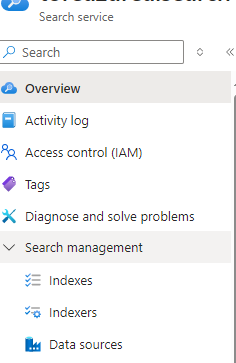
Choose the location and the Pricing Tier. You can choose the Free (F) pricing tier to test out the Azure AI Search. The standard pricing tier comes in at about 250 USD per month, so a word of caution here as billing might incur if you do not choose the Free tier. Head over to the Azure AI Search service after it is crated and note inside the Overview the Url. Expand the Search management and choose the folowing menu options and fill out them in this order:
  • Data sources
  • Indexes
  • Indexers


There are several types of data sources you can add.
  • Azure Blog Storage
  • Azure Data Lake Storage Gen2
  • Azure Cosmos DB
  • Azure SQL Database
  • Azure Table Storage
  • Fabric OneLake files

Upload files to the blob container

  • I have tested out adding a data source using Azure Blob Storage. I had to create a new storage account and I believe Azure might have changed it over the years, so for best compability, add a brand new storage account. Then choose a blob container inside the Blob storage, then hit the Create button.
  • Head over to your Storage browser inside your storage account, then choose Blob container. You can add a Blob container and then after it is created, click the Upload button.
  • You can then upload multiple files into the blob container (it is like a folder, which saves your files as blobs).

Setting up the index

  • After the Blob storage (storage account) is added to the data source, choose the Indexes menu button inside Azure AI search. Click Add index.
  • After the index is added, choose the button Add field
  • Add a field name called : Edit.String of type Edm.String.
  • Click the checkbox for Retrievable and Searchable. Click the button Save

Setting up the indexer

  • Choose to add an Indexer via button Add indexer
  • Choose the Index you added
  • Choose the Data source you added
  • Select the indexed extensions and specify which file types to index. Probably you should select text based files here, such as .md and .markdown files and even some binary file type such as .pdf and .docx can be selected here
  • Data to extract: Choose Content and metadata


Source code for this article

The source code can be cloned from this Github repo:
br /> https://github.com/toreaurstadboss/OpenAIDemo.git

The code for this article is available in the branch:
feature/openai-search-documentsources To add the data source to our ChatClient instance, we do the following. Please note that this method will be changed in the Azure AI SDK in the future :


            ChatCompletionOptions? chatCompletionOptions = null;
            if (dataSources?.Any() == true)
            {
                chatCompletionOptions = new ChatCompletionOptions();

                foreach (var dataSource in dataSources!)
                {
#pragma warning disable AOAI001 // Type is for evaluation purposes only and is subject to change or removal in future updates. Suppress this diagnostic to proceed.
                    chatCompletionOptions.AddDataSource(new AzureSearchChatDataSource()
                    {
                        Endpoint = new Uri(dataSource.endpoint),
                        IndexName = dataSource.indexname,
                        Authentication = DataSourceAuthentication.FromApiKey(dataSource.authentication)
                    });
#pragma warning restore AOAI001 // Type is for evaluation purposes only and is subject to change or removal in future updates. Suppress this diagnostic to proceed.
                }

            }


The updated version of the extension class of OpenAI.Chat.ChatClient then looks like this: ChatClientExtensions.cs


using Azure.AI.OpenAI.Chat;
using OpenAI.Chat;
using System.ClientModel;
using System.Text;

namespace ToreAurstadIT.OpenAIDemo
{
    public static class ChatclientExtensions
    {

        /// <summary>
        /// Provides a stream result from the Chatclient service using AzureAI services.
        /// </summary>
        /// <param name="chatClient">ChatClient instance</param>
        /// <param name="message">The message to send and communicate to the ai-model</param>
        /// <returns>Streamed chat reply / result. Consume using 'await foreach'</returns>
        public static AsyncCollectionResult<StreamingChatCompletionUpdate> GetStreamedReplyAsync(this ChatClient chatClient, string message,
            (string endpoint, string indexname, string authentication)[]? dataSources = null)
        {
            ChatCompletionOptions? chatCompletionOptions = null;
            if (dataSources?.Any() == true)
            {
                chatCompletionOptions = new ChatCompletionOptions();

                foreach (var dataSource in dataSources!)
                {
#pragma warning disable AOAI001 // Type is for evaluation purposes only and is subject to change or removal in future updates. Suppress this diagnostic to proceed.
                    chatCompletionOptions.AddDataSource(new AzureSearchChatDataSource()
                    {
                        Endpoint = new Uri(dataSource.endpoint),
                        IndexName = dataSource.indexname,
                        Authentication = DataSourceAuthentication.FromApiKey(dataSource.authentication)
                    });
#pragma warning restore AOAI001 // Type is for evaluation purposes only and is subject to change or removal in future updates. Suppress this diagnostic to proceed.
                }

            }

            return chatClient.CompleteChatStreamingAsync(
                [new SystemChatMessage("You are an helpful, wonderful AI assistant"), new UserChatMessage(message)], chatCompletionOptions);
        }

        public static async Task<string> GetStreamedReplyStringAsync(this ChatClient chatClient, string message, (string endpoint, string indexname, string authentication)[]? dataSources = null, bool outputToConsole = false)
        {
            var sb = new StringBuilder();
            await foreach (var update in GetStreamedReplyAsync(chatClient, message, dataSources))
            {
                foreach (var textReply in update.ContentUpdate.Select(cu => cu.Text))
                {
                    sb.Append(textReply);
                    if (outputToConsole)
                    {
                        Console.Write(textReply);
                    }
                }
            }
            return sb.ToString();
        }

    }
}


The updated code for the demo app then looks like this, I chose to just use tuples here for the endpoint, index name and api key:

ChatpGptDemo.cs


using OpenAI.Chat;
using OpenAIDemo;
using System.Diagnostics;

namespace ToreAurstadIT.OpenAIDemo
{
    public class ChatGptDemo
    {

        public async Task<string?> RunChatGptQuery(ChatClient? chatClient, string msg)
        {
            if (chatClient == null)
            {
                Console.WriteLine("Sorry, the demo failed. The chatClient did not initialize propertly.");
                return null;
            }

            Console.WriteLine("Searching ... Please wait..");

            var stopWatch = Stopwatch.StartNew();

            var chatDataSources = new[]{
                (
                    SearchEndPoint: Environment.GetEnvironmentVariable("AZURE_SEARCH_AI_ENDPOINT", EnvironmentVariableTarget.User) ?? "N/A",
                    SearchIndexName: Environment.GetEnvironmentVariable("AZURE_SEARCH_AI_INDEXNAME", EnvironmentVariableTarget.User) ?? "N/A",
                    SearchApiKey: Environment.GetEnvironmentVariable("AZURE_SEARCH_AI_APIKEY", EnvironmentVariableTarget.User) ?? "N/A"
                )
            };

            string reply = "";

            try
            {

                reply = await chatClient.GetStreamedReplyStringAsync(msg, dataSources: chatDataSources, outputToConsole: true);
            }
            catch (Exception ex)
            {
                Console.WriteLine(ex.Message);
            }

            Console.WriteLine($"The operation took: {stopWatch.ElapsedMilliseconds} ms");


            Console.WriteLine();

            return reply;
        }

    }
}


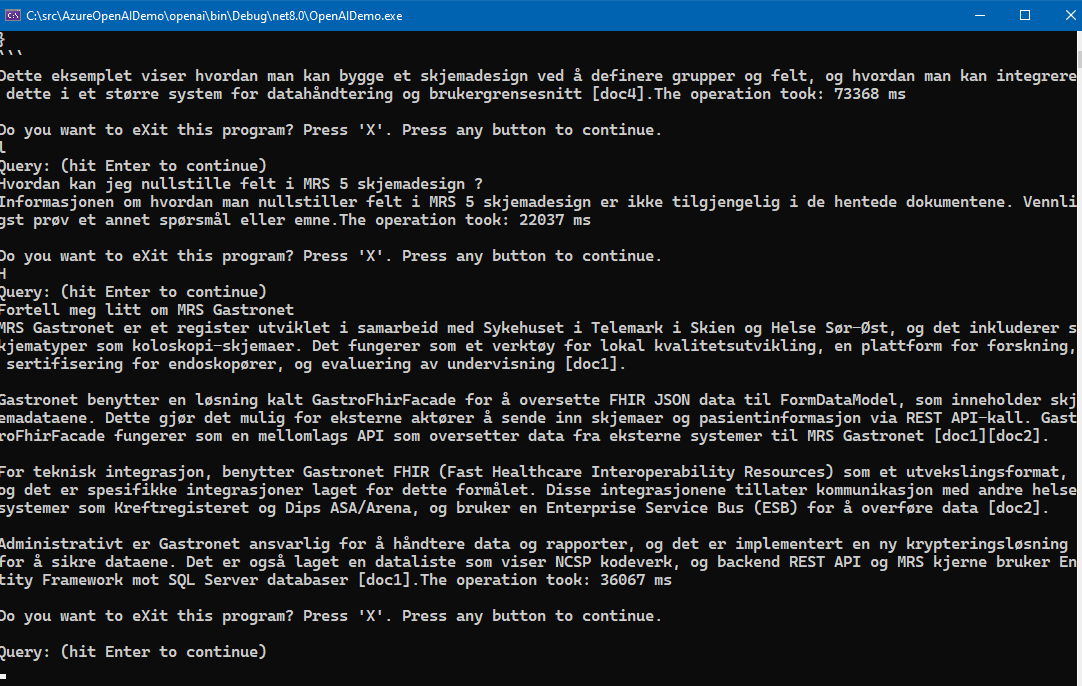
The code here expects that three user-specific environment variables exists. Please note that the API key can be found under the menu item Keys in Azure AI Search. There are two admin keys and multiple query keys. To distribute keys to other users, you of course share the API query key, not the admin key(s). The screenshot below shows the demo. It is a console application, it could be web application or other client : Please note that the Free tier of Azure AI Search is rather slow and seems to only allow queryes at a certain interval, it will suffice to just test it out. To really test it out in for example an Intranet scenario, the standard tier Azure AI search service is recommended, at about 250 USD per month as noted.

Conclusions

Getting an Azure AI Chat service to work in intranet scenarios using a combination of Open AI Chat GPT-4 together with a custom collection of files that are indexed offers a nice combination of building up a knowledge base which you can query against. It is rather convenient way of building an on-premise solution for intranet AI chat service using Azure cloud services.

Monday, 2 December 2024

Azure AI OpenAI chat GPT-4 client connection

This article presents code that shows how you can connect to OpenAI Chat GPT-4 client connection. The repository for the code presented is the following GitHub repo:

https://github.com/toreaurstadboss/OpenAIDemo

The repo contains useful helper methods to use Azure AI Service and create AzureOpenAIClient or the more generic ChatClient which is a specified chat client for the AzureOpenAIClient that uses a specific ai model, default ai model to use is 'gpt-4'. The creation of chat client is done using a class with a builder pattern. To create a chat client you can simply create it like this :

Program.cs

         const string modelName = "gpt-4";

            var chatClient = AzureOpenAIClientBuilder
                .Instance
                .WithDefaultEndpointFromEnvironmentVariable()
                .WithDefaultKeyFromEnvironmentVariable()
                .BuildChatClient(aiModel: modelName);
                

The builder looks like this:

AzureOpenAIClientBuilder.cs


using Azure.AI.OpenAI;
using OpenAI.Chat;
using System.ClientModel;

namespace ToreAurstadIT.OpenAIDemo
{

    /// <summary>
    /// Creates AzureOpenAIClient or ChatClient (default model is "gpt-4")
    /// Suggestion:
    /// Create user-specific Environment variables for : AZURE_AI_SERVICES_KEY and AZURE_AI_SERVICES_ENDPOINT to avoid exposing endpoint and key in source code.
    /// Then us the 'WithDefault' methods to use the two user-specific environment variables, which must be set.
    /// </summary>
    public class AzureOpenAIClientBuilder
    {

        private const string AZURE_AI_SERVICES_KEY = nameof(AZURE_AI_SERVICES_KEY);
        private const string AZURE_AI_SERVICES_ENDPOINT = nameof(AZURE_AI_SERVICES_ENDPOINT);

        private string? _endpoint = null;
        private ApiKeyCredential? _key = null;

        public AzureOpenAIClientBuilder WithEndpoint(string endpoint) { _endpoint = endpoint; return this; }

        /// <summary>
        /// Usage: Provide user-specific enviornment variable called : 'AZURE_AI_SERVICES_ENDPOINT'
        /// </summary>
        /// <returns></returns>
        public AzureOpenAIClientBuilder WithDefaultEndpointFromEnvironmentVariable() { _endpoint = Environment.GetEnvironmentVariable(AZURE_AI_SERVICES_ENDPOINT, EnvironmentVariableTarget.User); return this; }
       
        
        public AzureOpenAIClientBuilder WithKey(string key) { _key = new ApiKeyCredential(key); return this; }       
        public AzureOpenAIClientBuilder WithKeyFromEnvironmentVariable(string key) { _key = new ApiKeyCredential(Environment.GetEnvironmentVariable(key) ?? "N/A"); return this; }

        /// <summary>
        /// Usage : Provide user-specific environment variable called : 'AZURE_AI_SERVICES_KEY'
        /// </summary>
        /// <returns></returns>
        public AzureOpenAIClientBuilder WithDefaultKeyFromEnvironmentVariable() { _key = new ApiKeyCredential(Environment.GetEnvironmentVariable(AZURE_AI_SERVICES_KEY, EnvironmentVariableTarget.User) ?? "N/A"); return this; }

        public AzureOpenAIClient? Build() => !string.IsNullOrWhiteSpace(_endpoint) && _key != null ? new AzureOpenAIClient(new Uri(_endpoint), _key) : null;

        /// <summary>
        /// Default model will be set 'gpt-4'
        /// </summary>
        /// <returns></returns>
        public ChatClient? BuildChatClient(string aiModel = "gpt-4") => Build()?.GetChatClient(aiModel);

        public static AzureOpenAIClientBuilder Instance => new AzureOpenAIClientBuilder();

    }
}


It is highly recommended to store your endpoint and key to the Azure AI service of course not in the source code repository, but another place, for example on your user-specific environment variable or Azure key vault or similar place hard to obtain for malicious use, for example using your account to route much traffic to Chat GPT-4 only to end up being billed for this traffic. The code provided some 'default methods' which will look for environment variables. Add the key and endpoint to your Azure AI to these user specific environment variables.
  • AZURE_AI_SERVICES_KEY
  • AZURE_AI_SERVICES_ENDPOINT

To use the chat client the following code shows how to do this:

ChatGptDemo.cs


    public async Task<string?> RunChatGptQuery(ChatClient? chatClient, string msg)
        {
            if (chatClient == null)
            {
                Console.WriteLine("Sorry, the demo failed. The chatClient did not initialize propertly.");
                return null;
            }

            var stopWatch = Stopwatch.StartNew();

            string reply = await chatClient.GetStreamedReplyStringAsync(msg, outputToConsole: true);

            Console.WriteLine($"The operation took: {stopWatch.ElapsedMilliseconds} ms");


            Console.WriteLine();

            return reply;
        }
        
        
The communication against Azure AI service with Open AI Chat-GPT service is this line:

ChatGptDemo.cs


    string reply = await chatClient.GetStreamedReplyStringAsync(msg, outputToConsole: true);

The Chat GPT-4 service will return the data streamed so you can output the result as quickly as possible. I have tested it out using Standard Service S0 tier, it is a bit slower than the default speed you get inside the browser using Copilot, but it works and if you output to the console, you get a similar experience. The code here can be used in different environments, the repo contains a console app with .NET 8.0 Framework, written in C# as shown in the code. Here is the helper methods for the ChatClient, provided as extension methods.

ChatclientExtensions.cs


using OpenAI.Chat;
using System.ClientModel;
using System.Text;

namespace OpenAIDemo
{
    public static class ChatclientExtensions
    {

        /// <summary>
        /// Provides a stream result from the Chatclient service using AzureAI services.
        /// </summary>
        /// <param name="chatClient">ChatClient instance</param>
        /// <param name="message">The message to send and communicate to the ai-model</param>
        /// <returns>Streamed chat reply / result. Consume using 'await foreach'</returns>
        public static AsyncCollectionResult<StreamingChatCompletionUpdate> GetStreamedReplyAsync(this ChatClient chatClient, string message) =>
            chatClient.CompleteChatStreamingAsync(
                [new SystemChatMessage("You are an helpful, wonderful AI assistant"), new UserChatMessage(message)]);

        public static async Task<string> GetStreamedReplyStringAsync(this ChatClient chatClient, string message, bool outputToConsole = false)
        {
            var sb = new StringBuilder();
            await foreach (var update in GetStreamedReplyAsync(chatClient, message))
            {
                foreach (var textReply in update.ContentUpdate.Select(cu => cu.Text))
                {
                    sb.Append(textReply);
                    if (outputToConsole)
                    {
                        Console.Write(textReply);
                    }
                }
            }
            return sb.ToString();
        }

    }
}


The code presented here should make it a bit easier to communicate with the Azure AI Open AI Chat GPT-4 service. See the repository to test out the code. Screenshot below shows the demo in use in a console running against the Azure AI Chat GPT-4 service :