Sunday, 9 July 2023

Localizing Blazor WASM applications with a language picker

This article presents code how to localize a Blazor WASM app with a language picker. This is part of globalizing an app. The sample app is in this sample app in GitHub: https://github.com/toreaurstadboss/HelloBlazorLocalization

First off, we need to add some Nuget package references, such as adding a capability of using local storage in a convenient way in the Blazor WASM app. The project file of the sample app has this setup :

Project file - HelloBlazorLocalization.csproj
<Project Sdk="Microsoft.NET.Sdk.BlazorWebAssembly">

  <PropertyGroup>
    <TargetFramework>net6.0</TargetFramework>
    <Nullable>enable</Nullable>
    <ImplicitUsings>enable</ImplicitUsings>
	<BlazorWebAssemblyLoadAllGlobalizationData>true</BlazorWebAssemblyLoadAllGlobalizationData>
  </PropertyGroup>

  <ItemGroup>
    <Compile Remove="Shared\Resources\**" />
    <Content Remove="Shared\Resources\**" />
    <EmbeddedResource Remove="Shared\Resources\**" />
    <None Remove="Shared\Resources\**" />
  </ItemGroup>

  <ItemGroup>
	  <PackageReference Include="Blazored.LocalStorage" Version="4.3.0" />
	  <PackageReference Include="Microsoft.AspNetCore.Components.WebAssembly" Version="6.0.3" />
	  <PackageReference Include="Microsoft.AspNetCore.Components.WebAssembly.DevServer" Version="6.0.3" PrivateAssets="all" />
	  <PackageReference Include="Microsoft.AspNetCore.Localization" Version="2.1.1" />
	  <PackageReference Include="Microsoft.AspNetCore.WebUtilities" Version="2.2.0" />
	  <PackageReference Include="Microsoft.Extensions.Localization" Version="6.0.3" />
  </ItemGroup>

  <ItemGroup>
    <Folder Include="wwwroot\flag-icons\" />
  </ItemGroup>

  <ItemGroup>
    <None Include="HelloBlazorLocalization.sln" />
  </ItemGroup>

</Project>


Note the use of the property setting : BlazorWebAssemblyLoadAllGlobalizationData This is required to add localization to your Blazor WASM app ! Also note that we use Blazored.LocalStorage to write and access local storage. Let's look at the Program.cs file next how we set up the app.

Program.cs

using Blazored.LocalStorage;
using HelloBlazorLocalization;
using Microsoft.AspNetCore.Builder;
using Microsoft.AspNetCore.Components.Web;
using Microsoft.AspNetCore.Components.WebAssembly.Hosting;

var builder = WebAssemblyHostBuilder.CreateDefault(args);
builder.RootComponents.Add<App>("#app");
builder.RootComponents.Add<HeadOutlet>("head::after");

builder.Services.AddScoped(sp => new HttpClient { BaseAddress = new Uri(builder.HostEnvironment.BaseAddress) });

builder.Services.Configure<RequestLocalizationOptions>(options =>
{
    string[] supportedCultures = new[] { "no", "en" };
    options
        .AddSupportedCultures(supportedCultures)
        .AddSupportedUICultures(supportedCultures)
        .SetDefaultCulture("no");
});

builder.Services.AddLocalization(options => 
    options.ResourcesPath = "Resources");

builder.Services.AddBlazoredLocalStorage();

await builder.Services.BuildServiceProvider().SetDefaultCultureAsync();

await builder.Build().RunAsync();


An extension method is added to ServiceProvider to load up selected culture from local storage. It also inspects the query string set, if any, since language picker component presented later on will reload the Blazor WASM app after selecting language.


WebAssemblyHostExtensions.cs

using Blazored.LocalStorage;
using Microsoft.AspNetCore.Components;
using Microsoft.AspNetCore.Components.WebAssembly.Hosting;
using Microsoft.AspNetCore.WebUtilities;
using System.Globalization;

namespace HelloBlazorLocalization
{

    public static class WebAssemblyHostExtensions
    {
        public async static Task SetDefaultCultureAsync(this ServiceProvider serviceProvider)
        {
            var navigationManager = serviceProvider.GetService<NavigationManager>(); 
            var uri = navigationManager!.ToAbsoluteUri(navigationManager.Uri);
            var queryStrings = QueryHelpers.ParseQuery(uri.Query);
            var localStorage = serviceProvider.GetRequiredService<ILocalStorageService>();

            if (queryStrings.TryGetValue("culture", out var selectedCulture))
            {
                await localStorage.SetItemAsStringAsync("culture", selectedCulture);
            }

            var cultureString = await localStorage.GetItemAsync<string>("culture");
            CultureInfo cultureInfo;

            if (!string.IsNullOrWhiteSpace(cultureString))
            {
                cultureInfo = new CultureInfo(cultureString);
            }
            else
            {
                cultureInfo = new CultureInfo("en-US");
            }

            CultureInfo.DefaultThreadCurrentCulture = cultureInfo;
            CultureInfo.DefaultThreadCurrentUICulture = cultureInfo;
        }
    }

}


Now, let's look at the Index.razor file where we repeat some of the code in the extension method shown above.


Index.razor

@page "/"
@using System.Globalization;

@inject NavigationManager NavigationManager
@inject Blazored.LocalStorage.ILocalStorageService LocalStorage
@inject IStringLocalizer<SharedResources> Localizer

<PageTitle>@Localizer["Home"]</PageTitle>

<h1>@Localizer["Home"]</h1>

@Localizer["HomeDescription"]

<SurveyPrompt Title="How is Blazor working for you?" />


@code {

    protected override async Task OnParametersSetAsync()
    {
        var uri = NavigationManager.ToAbsoluteUri(NavigationManager.Uri);
        var queryStrings = QueryHelpers.ParseQuery(uri.Query);
        if (queryStrings.TryGetValue("culture", out var selectedCulture))
        {
            await LocalStorage.SetItemAsStringAsync("culture", selectedCulture);

        }
        else
        {
            selectedCulture = await LocalStorage.GetItemAsStringAsync("culture");
        }
        if (!string.IsNullOrWhiteSpace(selectedCulture))
        {
            var cultureInfo = new CultureInfo(selectedCulture);
            CultureInfo.DefaultThreadCurrentCulture = cultureInfo;
            CultureInfo.DefaultThreadCurrentUICulture = cultureInfo;            
        }

    }

}

To localize strings, we first do an inject of the IStringLocalizer as shown in the razor file. We also set the resource key when we fetch the localized text (Value). This is set up in the SharedResource files. This is done in the sample app in three files.
  • An empty class called SharedResources at the root level
  • Two resources files (.resx) called SharedResources.en.resx and SharedResources.no.resx
You can have multiple resource file in Blazor WASM. Note that we in Program.cs set up the ResourcesPath to the sub folder Resources, where we put the .resx files. See the sample app for details (clone the Github repo). Next up, let's look at the LanguagePicker.razor file that will show a language picker. The sample app got flag icons for all flags of countries so check out the folder flag-icons under wwwroot folder in the sample app.


LanguagePicker.razor

@using Microsoft.AspNetCore.Localization
@using Microsoft.Extensions.Options
@using System.Globalization
@inject IOptions<RequestLocalizationOptions> LocalizationOptions
@inject Blazored.LocalStorage.ILocalStorageService LocalStorage

<div class="mt-3 mb-3 mx-5">

    @foreach (var culture in LocalizationOptions.Value.SupportedCultures)
    { 
        
        <a style="cursor:pointer" onclick="location.href = '/?culture=@culture.ToString()';" class="text-decoration-none">
            <img style="width:20px" src="flag-icons/@(culture.Name).png" alt="@culture.Name" />
            <span class="badge rounded-pill mx-1 border border-primary 
            @((culture.ToString() == CultureInfo.CurrentCulture.ToString() || culture.ToString() == _selectedCulture) ?
                "btn btn-success" : "btn btn-info text-dark")">@culture</span>
        </a>  <br />
    }
</div>

@code {
    private string? _selectedCulture;
    protected override async Task OnParametersSetAsync()
    {
        _selectedCulture = await LocalStorage.GetItemAsStringAsync("culture");
    }
}


Note that Blazor WASM app should refresh entirely after choosing another language. Also note that you should set up multiple languages in your browser to get the expected results. You should have the supported languages set up in Blazor WASM, however it might still work to get the localization done if the language settings are not set up to include the specified languages. But if you do not see the expected results, check the language settings in your browser. And as can be seen, we use local storage to persist our selected language. The selected language is displayed with the green button to indicate selected. When the Blazor WASM reloads, the selected language is fetched from local storage. This can be seen in Application => Local Storage in F12 Developer Tools in Chrome for example, when running the app. Blazor WASM supports a reduced set of localization functionality, compared to Blazor server side apps.
A limited set of ASP.NET Core's localization features are supported:

✔️Supported: IStringLocalizer and IStringLocalizer are supported in Blazor apps.

❌Not supported: IHtmlLocalizer, IViewLocalizer, and Data Annotations localization are ASP.NET Core MVC features and not supported in Blazor apps.

Friday, 7 July 2023

Mocking Http Client used for Blazor apps using bUnit

This article will look at running http client calls used by Blazor apps using bUnit. First off, bUnit is a library to perform unit tests for Blazor apps. We will look at mocking http client calls in this article. I have added a Github repo with the sample code in this article here :

https://github.com/toreaurstadboss/BlazorHttpClientMocking
Setting up the project Nuget package references of the test project - BlazorHttpClientMocking.Test
 

    <PackageReference Include="bunit" Version="1.21.9" />
    <PackageReference Include="FluentAssertions" Version="6.11.0" />
    <PackageReference Include="Microsoft.NET.Test.Sdk" Version="17.5.0" />
    <PackageReference Include="Moq" Version="4.18.4" />
    <PackageReference Include="RichardSzalay.MockHttp" Version="6.0.0" />
    <PackageReference Include="xunit" Version="2.4.2" />
    <PackageReference Include="xunit.runner.visualstudio" Version="2.4.5">
      <IncludeAssets>runtime; build; native; contentfiles; analyzers; buildtransitive</IncludeAssets>
      <PrivateAssets>all</PrivateAssets>
    </PackageReference>
    <PackageReference Include="coverlet.collector" Version="3.2.0">
      <IncludeAssets>runtime; build; native; contentfiles; analyzers; buildtransitive</IncludeAssets>
      <PrivateAssets>all</PrivateAssets>
    </PackageReference>
 
 
We will use the Nuget package RichardSzalay.MockHttp to do much of the mocking of http client. The following helper extension methods allow us to easier add mocking of http client calls.
 
 
Helper extension methods for http client using bUnit - MockHttpClientBunitHelpers.cs
 
using Bunit;
using Microsoft.Extensions.DependencyInjection;
using RichardSzalay.MockHttp;
using System.Net;
using System.Net.Http.Headers;
using System.Text.Json;

namespace BlazorHttpClientMocking.Test.Helpers
{
    public static class MockHttpClientBunitHelpers
    {

        public static MockHttpMessageHandler AddMockHttpClient(this TestServiceProvider services, string baseAddress = @"http://localhost")
        {
            var mockHttpHandler = new MockHttpMessageHandler();
            var httpClient = mockHttpHandler.ToHttpClient();
            httpClient.BaseAddress = new Uri(baseAddress);
            services.AddSingleton<HttpClient>(httpClient);
            return mockHttpHandler;
        }

        public static T? FromResponse<T>(this HttpResponseMessage? response, JsonSerializerOptions? options = null)
        {
            if (response == null)
            {
                return default(T);
            }
            if (options == null)
            {
                options = new JsonSerializerOptions
                {
                    PropertyNameCaseInsensitive = true
                };
            }
            string responseString = response.Content.ReadAsStringAsync().Result;
            var result = JsonSerializer.Deserialize<T>(responseString, options);
            return result;
        }

        public static async Task<T?> FromResponseAsync<T>(this HttpResponseMessage? response, JsonSerializerOptions? options = null)
        {
            if (response == null)
            {
                return await Task.FromResult(default(T));
            }
            if (options == null)
            {
                options = new JsonSerializerOptions
                {
                    PropertyNameCaseInsensitive = true
                };
            }
            string responseString = await response.Content.ReadAsStringAsync();
            var result = JsonSerializer.Deserialize<T>(responseString, options);
            return result;
        }

        public static MockedRequest RespondJson<T>(this MockedRequest request, T content)
        {
            request.Respond(req =>
            {
                var response = new HttpResponseMessage(HttpStatusCode.OK);
                response.Content = new StringContent(JsonSerializer.Serialize(content));
                response.Content.Headers.ContentType = new MediaTypeHeaderValue("application/json");
                return response;
            });
            return request;
        }

        public static MockedRequest RespondJson<T>(this MockedRequest request, Func<T> contentProvider)
        {
            request.Respond(req =>
            {
                var response = new HttpResponseMessage(HttpStatusCode.OK);
                response.Content = new StringContent(JsonSerializer.Serialize(contentProvider()));
                response.Content.Headers.ContentType = new MediaTypeHeaderValue("application/json");
                return response;
            });
            return request;
        }


    }
}


The method AddMockHttpClient, which is an extension method on TestServiceProvider adds the mocked client. In the code above we read the response into a string and deserialize with System.Text.Json, defaulting to case insensitive property naming, since this is default System.Text.Json on web, but not elsewhere, such as in test projects.


Helper methods for serialization - SerializationHelpers.cs
  
using System.Text.Json;

namespace BlazorHttpClientMocking.Test.Helpers
{
    public static class SerializationHelpers
    {

        public static async Task<T?> DeserializeJsonAsync<T>(string path, JsonSerializerOptions? options = null)
        {
            if (options == null)
            {
                options = new JsonSerializerOptions
                {
                    WriteIndented = true,
                    IncludeFields = true,
                    PropertyNameCaseInsensitive = true
                };
            }

            using (Stream stream = new FileStream(path, FileMode.Open, FileAccess.Read, FileShare.Read))
            {
                if (File.Exists(path) && stream.Length > 0)
                {
                    T? obj = await JsonSerializer.DeserializeAsync<T>(stream, options);
                    return obj;
                }
                return default(T);
            }

        }

    }
}


Let's look at a unit test which then sets up a mocked http client response that is used in the Blazor sample app on the FetchData page.


using BlazorHttpClientMocking.Test.Helpers;
using Bunit;
using FluentAssertions;
using Microsoft.Extensions.DependencyInjection;
using RichardSzalay.MockHttp;
using static BlazorHttpClientMocking.Pages.FetchData;

namespace BlazorHttpClientMocking.Test
{
    public class FetchDataTests
    {
        [Fact]
        public async Task FetchData_HttpClient_Request_SuccessResponse()
        {
            //Arrange 
            using var ctx = new TestContext();
            var httpMock = ctx.Services.AddMockHttpClient();
            string knownUrl = @"/sample-data/weather.json";
            var sampleData = await SerializationHelpers.DeserializeJsonAsync<WeatherForecast[]>(knownUrl.TrimStart('/')); //trimming start of url since we need a physical path
            httpMock.When(knownUrl).RespondJson(sampleData);

            //Act
            var httpClient = ctx.Services.BuildServiceProvider().GetService<HttpClient>();
            var httpClientResponse = await httpClient!.GetAsync(knownUrl);
            httpClientResponse.EnsureSuccessStatusCode();
            var forecasts = await httpClientResponse.FromResponseAsync<WeatherForecast[]>();

            //Assert 
            forecasts.Should().NotBeNull();
            forecasts.Should().HaveCount(5);
        }

    }
}


In the arrange part of the unit test above, we create a TestContext and add a mocked http client using the extension method shown earlier. We read out the sample json data and set up using the When method and remember to add "/" to the path as this is expected since we have a baseAddress specified on the http client, set to @"http://localhost" default.

We retrieve http client via the Services collection on the TestContext and call BuildServiceProvider and GetService method to get the http client with the mocking. The mocking must be done via the When method and then we get the client. The mocked http client is a singleton service here.

We can also do parameters in the mocking of http client calls.

Using parameters in http client calls

Lets first add parameter support for the Fetchdata razor page. Fetchdata.razor

 @page "/fetchdata/"
 @page "/fetchdata/{id:int}"


 @code {
    internal WeatherForecast[]? forecasts;

    [Parameter]
    public int? Id { get; set; }

    protected override async Task OnInitializedAsync()
    {
        forecasts = await Http.GetFromJsonAsync<WeatherForecast[]>($"sample-data/weather.json");
        if (forecasts != null && Id >= 0 && Id < 5)
        {
            forecasts = forecasts.Skip(Id.Value).Take(1).ToArray();
        }
    }

    public class WeatherForecast
    {
        public DateOnly Date { get; set; }

        public int TemperatureC { get; set; }

        public string? Summary { get; set; }

        public int TemperatureF => 32 + (int)(TemperatureC / 0.5556);
    }
}


Let's now look at using parameters in mocked http client calls in another unit test.
 
 
         [Fact]
        public async Task FetchData_HttpClient_With_Parameter_Request_SuccessResponse()
        {
            //Arrange 
            using var ctx = new TestContext();
            var httpMock = ctx.Services.AddMockHttpClient();
            string knownUrl = @"/sample-data/weather.json/0";
            string fileUrl = @"sample-data/weather.json";

            var sampleData = await SerializationHelpers.DeserializeJsonAsync<WeatherForecast[]>(fileUrl); //trimming start of url since we need a physical path
            httpMock.When(knownUrl).RespondJson(sampleData);

            //Act
            var renderComponent = ctx.RenderComponent<FetchData>(p => p
                .Add(fd => fd.Id, 0));

            //Assert 
            renderComponent.Instance.forecasts.Should().NotBeNull();

            renderComponent.Instance.forecasts.Should().HaveCount(1);    
        }


Here we use bUnit's capabilities in rendering Blazor components using the RenderComponent method and we also set the Id parameter here to the value 0 which now will prepare our component with the right forecasts, here only one forecast will be shown. We use the Instance property to look at the forecasts field of the component. internal WeatherForecast[]? forecasts; So bUnit can be used both the mock http client calls and also render Blazor components and also support parametrized calls of mocked http client calls.


Finally a tip concerning letting your internal fields to be available for test project. In the csproj file of the application we can set it up like in this example :

  <ItemGroup>
		<AssemblyAttribute Include="System.Runtime.CompilerServices.InternalsVisibleToAttribute">
			<_Parameter1>BlazorHttpClientMocking.Test</_Parameter1>
		</AssemblyAttribute>
  </ItemGroup>

Here we set up that the test project can see the internals of the blazor app project. This allows the test project to see internal methods and internal fields, internal classes and so on. This allows you to avoid changing parameters or fields in your components from private to public for example and instead change access modifier to internal so the tests can access those members.

Tuesday, 4 July 2023

Writing cookies with Blazor WASM

This article presents some source code of how to write and read cookies from Blazor WebAssembly - WASM. For Blazor WASM, we are going to use Javascript to write these cookies. Blazor WASM has not an easy way to write these cookies programatically, as the use of HttpContext accessor is discouraged and not available, i.e. you cannot just add cookies without round trips to backend services.

But via Js, the client can write cookies. I looked into a helper lib to write such cookies and do so using different attribute values for the cookies.
The following Mozilla Developer Network (MDN) page is helpful in detailing cookies, which attribute values can be set on them. Cookies are used to give user experience since they track user's on a web site and give tailored user experience - and advertising - and also can track the users accross servers / web sites as third-party cookies. They are small string values that are either stored on clients inside cookie storage in the browser's folder on the user's hard drive or in memory or other place such as partitioned cookies.

MND page - document.cookies

https://developer.mozilla.org/en-US/docs/Web/API/Document/cookie First off, the source code is here:

Forked Repo with adaptions in cookie handling for Blazor WASM

https://github.com/toreaurstadboss/AltairCA.Blazor.WebAssembly.Cookie This is a forked repo from this repo:

Original repo with cookie handling for Blazor WASM

https://github.com/AltairCA/AltairCA.Blazor.WebAssembly.Cookie The most recent branch of mine is this one: https://github.com/toreaurstadboss/AltairCA.Blazor.WebAssembly.Cookie/blob/feature/more-cookie-keys/README.md
Let's first look at the interface for the util class that will write cookies :

Interface for cookie handling for Blazor.wasm, IAltairCABlazorCookieUtil.cs


using AltairCA.Blazor.WebAssembly.Cookie.Models;

namespace AltairCA.Blazor.WebAssembly.Cookie
{
    public interface IAltairCABlazorCookieUtil
    {
        /// <summary>
        /// Set a object in the cookie
        /// </summary>
        /// <param name="key">The key for the cookie (name)</param>
        /// <param name="value">Cookie value</param>
        /// <param name="span">TimeSpan that will be set to the 'expires' attribute value</param>
        /// <param name="path">Path in the request url which must exist for the cookie to be sent in requests </param>
        /// <param name="domain">The host to which the cookie will be sent</param>
        /// <param name="secure">Specifies that the cookie will be sent only over secure protocols</param>
        /// <param name="isSession">Flags the cookie as a session cookie (temporal) by setting the 'expires' attribute value to ''</param>
        /// <param name="partitioned">Requires that the browser has activated partitioned cookies</param>
        /// <param name="maxAgeInSeconds">Maximum age in seconds</param> 
        /// <returns></returns>
        Task SetValueAsync(string key, object value, TimeSpan? span = null, string? path = null,
            string? domain = null, bool? secure = null, SameSite? sameSite = null, bool? partitioned = null, 
            bool? isSession = null, int? maxAgeInSeconds = null);

        /// <summary>
        /// Set a string in the cookie
        /// </summary>
        /// <param name="key">The key for the cookie (name)</param>
        /// <param name="value">Cookie value</param>
        /// <param name="span">TimeSpan that will be set to the 'expires' attribute value</param>
        /// <param name="path">Path in the request url which must exist for the cookie to be sent in requests </param>
        /// <param name="domain">The host to which the cookie will be sent</param>
        /// <param name="secure">Specifies that the cookie will be sent only over secure protocols</param>
        /// <param name="isSession">Flags the cookie as a session cookie (temporal) by setting the 'expires' attribute value to ''</param>
        /// <param name="partitioned">Requires that the browser has activated partitioned cookies</param>
        /// <param name="maxAgeInSeconds">Maximum age in seconds</param> 
        /// <returns></returns>
        Task SetValueAsync(string key, string value, TimeSpan? span = null, string? path=null, string? domain=null, 
            bool? secure = null, SameSite? sameSite = null, bool? partitioned = null, bool? isSession = null,
            int? maxAgeInSeconds = null);
       
        Task<string> GetValueAsync(string key);
       
        Task<T> GetValueAsync<T>(string key) where T : class;
        
        Task RemoveAsync(string key, string? path = null);

    }
}
 
 
And here is the implementation.

Implementation for cookie handling for Blazor.wasm, AltairCABlazorCookieUtil.cs


using System.ComponentModel;
using AltairCA.Blazor.WebAssembly.Cookie.Models;
using Microsoft.Extensions.Logging;
using Microsoft.Extensions.Options;
using Microsoft.JSInterop;
using Newtonsoft.Json;

namespace AltairCA.Blazor.WebAssembly.Cookie
{

    internal class AltairCABlazorCookieUtil : IAltairCABlazorCookieUtil
    {
        readonly IJSRuntime JSRuntime;
        private readonly AltairCABlazorCookieConfigOptions _settings;
        public AltairCABlazorCookieUtil(IJSRuntime jsRuntime,IOptions<AltairCABlazorCookieConfigOptions> options)
        {
            JSRuntime = jsRuntime;
            _settings = options.Value;
        }

        public Task SetValueAsync(string key, object value, TimeSpan? span = null, string? path = null,
            string? domain = null, bool? secure = null, SameSite? sameSite = null, bool? partitioned = null, bool? isSession = null,
            int? maxAgeInSeconds = null)
        {
            return SetValueAsync(key, JsonConvert.SerializeObject(value), span, path, domain, secure, sameSite, partitioned,
                isSession);
        }
        public async Task SetValueAsync(string key, string value, TimeSpan? span = null, string? path=null, string? domain=null, 
            bool? secure = null, SameSite? sameSite = null, bool? partitioned = null, bool? isSession = null,
             int? maxAgeInSeconds = null)
        {
            if (string.IsNullOrWhiteSpace(path))
                path = _settings.Path;
            if (!span.HasValue)
                span = _settings.DefaultExpire;
            if (string.IsNullOrWhiteSpace(domain))
                domain = _settings.Domain;
            if (!secure.HasValue)
                secure = _settings.IsSecure;
            
            var curExp = span.HasValue && span.Value.Ticks > 0 && isSession != true && !maxAgeInSeconds.HasValue ?  DateToUTC(span.Value) : "";            
            
            List<string> keyvals = new List<string>();
            keyvals.Add($"{key}={value}");
            keyvals.Add($"expires={curExp}");
            keyvals.Add($"path={path}");
            if(!string.IsNullOrWhiteSpace(domain))
                keyvals.Add($"domain={domain}");
            if(secure.HasValue && secure.Value)
                keyvals.Add("secure");
            if (maxAgeInSeconds.HasValue && isSession != true)
            {
                keyvals.Add($"max-age={maxAgeInSeconds.Value}");
            }
            if (sameSite.HasValue){
                DescriptionAttribute desc = (DescriptionAttribute) typeof(SameSite).GetMember(sameSite.Value.ToString()).First().GetCustomAttributes(typeof(DescriptionAttribute), false).First();
                keyvals.Add($"samesite={desc.Description}");
            } 
            string cookieToSet = string.Join(";", keyvals);
            if (partitioned == true){
                cookieToSet += ";partitioned";
            }
            
            await SetCookie(cookieToSet);
        }

        public async Task RemoveAsync(string key,string path = null)
        {
            if (string.IsNullOrWhiteSpace(path))
                path = _settings.Path;
            List<string> keyvals = new List<string>();
            keyvals.Add($"{key}=");
            keyvals.Add($"Path={path}");
            keyvals.Add($"expires=Thu, 01 Jan 1970 00:00:01 GMT;");
            await SetCookie(string.Join(";", keyvals));
        }

        public async Task<T> GetValueAsync<T>(string key) where T : class
        {
            var res = await GetValueAsync(key);
            if (res == null)
                return default(T);
            return JsonConvert.DeserializeObject<T>(res);
        }
        public async Task<string> GetValueAsync(string key)
        {
            var cValue = await GetCookie();
            if (string.IsNullOrEmpty(cValue)) return null;                

            var vals = cValue.Split(';');
            foreach (var val in vals)
                if(!string.IsNullOrEmpty(val) && val.IndexOf('=') > 0)
                    if(val.Substring(0, val.IndexOf('=')).Trim().Equals(key, StringComparison.OrdinalIgnoreCase))
                        return val.Substring(val.IndexOf('=') + 1);
            return null;
        }

        private async Task SetCookie(string value)
        {
            await JSRuntime.InvokeVoidAsync("eval", $"document.cookie = \'{value}\'");
        }

        private async Task<string> GetCookie()
        {
            return await JSRuntime.InvokeAsync<string>("eval", $"document.cookie");
        }
        private static string DateToUTC(TimeSpan span) => DateTime.Now.Add(span).ToUniversalTime().ToString("R");
    }
}


//we also have this enum used in cookie handler class above

using System.ComponentModel;

namespace AltairCA.Blazor.WebAssembly.Cookie.Models;

public enum SameSite {
    
    [Description("lax")]
    Lax = 0,

    [Description("strict")]
    Strict = 1,

    [Description("none")]
    None = 2
    
}


The MDN article details a lot around cookies and there are a lot of way of controlling these cookies via attributes. Most browsers limit Cookie sizes to be 4 kilobytes maximum length (4096 bytes) of all cookies on a server. And a maxiumum of 50 cookies, still must be below the 4 kB limit. https://stackoverflow.com/a/4604212 We set up the cookie handling via Program.cs of a Blazor WASM like this :

Implementation for cookie handling for Blazor.wasm, AltairCABlazorCookieUtil.cs


builder.Services.AddAltairCACookieService(options =>
{
    options.DefaultExpire = TimeSpan.FromMinutes(15);
});


This extension method on IServiceCollection adds the cookie handling as a singleton service, AltairCABlazorCookieUtil.cs


using AltairCA.Blazor.WebAssembly.Cookie.Models;
using Microsoft.Extensions.DependencyInjection;

namespace AltairCA.Blazor.WebAssembly.Cookie.Framework;

public static class PipelineExtension
{
    public static IServiceCollection AddAltairCACookieService(this IServiceCollection services,Action<AltairCABlazorCookieConfigOptions> configure)
    {
        services.Configure(configure);
        services.AddSingleton<IAltairCABlazorCookieUtil, AltairCABlazorCookieUtil>();
        return services;
    } 
}

//note - the extension method above also uses this model class to set up default options for cookies 

namespace AltairCA.Blazor.WebAssembly.Cookie.Models;

public class AltairCABlazorCookieConfigOptions
{
    public TimeSpan DefaultExpire { get; set; } = TimeSpan.Zero;
    public string Path { get; set; } = "/";
    public string Domain { get; set; } = string.Empty;
    public bool IsSecure { get; set; } = false;
}


As can be seen in the implementation, these default config options are injected in the constructor via :

AltairCABlazorCookieUtil.cs - constructor parameter injecting the options which was set via services.Configure in the extension method of the pipeline

 
public AltairCABlazorCookieUtil(IJSRuntime jsRuntime,IOptions<AltairCABlazorCookieConfigOptions> options)
{
	JSRuntime = jsRuntime;
    _settings = options.Value;
}

As we can see, we remove the cookie by setting it to expire at Unix Epoch zero (1970, 1st of January) in the cookie handling. A good util to inspect Cookies and even edit them are available in this Google plugin: Edit this Cookie


Counter.razor - using the Cookie util in Blazor WASM sample app


 @inject IAltairCABlazorCookieUtil _cookieUtil;


private async Task IncrementCount()
    {
        currentCount++;
        Content = await _cookieUtil.GetValueAsync("c");
        ContentObj = await _cookieUtil.GetValueAsync<object>("d");

        await _cookieUtil.SetValueAsync("c", "this is cookie with key c");
        await _cookieUtil.SetValueAsync("d", new
        {
            hello = "hello world. i am a cookie with key d"
        });
        await _cookieUtil.SetValueAsync("cookieWithSameSiteSet", "Cookie which specified cross site request inclusion of the cookie : SameSite value (lax | strict | none)", sameSite: SameSite.Lax);

        await _cookieUtil.SetValueAsync("cookiePartitioned", "Partitioned cookie", partitioned: true);
     
        await _cookieUtil.SetValueAsync("cookieWithMaxAge", "Max age cookie", maxAgeInSeconds: 600);

        await _cookieUtil.SetValueAsync("cookieWhichIsToBeSetToSessionCookie", "Session cookie = temporal cookie", isSession: true);

    }
  
One important note about the cookie util here, observe the usage of the 'eval' method to set the cookie via Js in the util class and also retrieve cookies :

Implementation for cookie handling for Blazor.wasm, AltairCABlazorCookieUtil.cs


   private async Task SetCookie(string value)
        {
            await JSRuntime.InvokeVoidAsync("eval", $"document.cookie = \'{value}\'");
        }

        private async Task<string> GetCookie()
        {
            return await JSRuntime.InvokeAsync<string>("eval", $"document.cookie");
        }


Using 'eval' we let Js run the Js code we pass in here in Blazor WASM app. This also means that we cannot write HttpOnly cookies, since we rely fully on Js here.

As some of you know, third party cookie support are planned by Chrome to be discontinued in support. The following article is interesting reading about this. https://itrust-digital.com/cookieless-future/

Saturday, 17 June 2023

Generic factory in C#

I tested out methods for building a simple generic factory in C#. This is using reflection to instantiate objects. It shows how we can combine some central methods in reflection to instantiate objects from types, they either being non-generic types, generic types which are either closed generic types or open generic types :
  • Activator.CreateInstance to instantiate the objects
  • MakeGenericType to close the generic type, which must be an open generic type
  • IsGenericTypeDefinition to check if the type is an open generic type
Consider this code where we attempt to make a generic type from an already closed type, it gives an InvalidOperationException telling us that we must check that IsGenericTypeDefinition is true on the type.

var someconcrete = typeof(Dictionary<string, int>);
var foo = someconcrete.MakeGenericType();

The Generic factory could of course be complex, support a multitude of scenarios, including resolving constructor arguments and their dependencies. This is more just demonstration code how you could instantiate objects via either closed or open generics in .NET. Observe that Activator.CreateInstance got a lot of different possible overloads.

Generic factory pattern in C# using reflection - simple approach


public static class GenericFactory {

	public static object CreateInstance<T>(Type type){		
		if (type.IsGenericTypeDefinition){
			var closedGenericType = type.MakeGenericType(typeof(T));	
			return Activator.CreateInstance(closedGenericType);			
		}		
		return Activator.CreateInstance<T>();	
	}

	public static TReturn CreateInstance<T, TReturn>(Type type)
	{
		if (type.IsGenericTypeDefinition)
		{
			var closedGenericType = type.MakeGenericType(typeof(T));
			return (TReturn) Activator.CreateInstance(closedGenericType);
		}
		return (TReturn) Activator.CreateInstance<TReturn>();
	}

	public static TReturn CreateInstance<T1, T2, TReturn>(Type type, params object[] args)
	{
		if (type.IsGenericTypeDefinition)
		{
			var closedGenericType = type.MakeGenericType(typeof(T1), typeof(T2));
			return (TReturn)Activator.CreateInstance(closedGenericType, args);
		}
		return (TReturn)Activator.CreateInstance(type, args);
	}

	public static object CreateInstance(Type type, Type[]genericTypeArguments, params object[] args)
	{
		if (type.IsGenericTypeDefinition)
		{
			var closedGenericType = type.MakeGenericType(genericTypeArguments);
			return Activator.CreateInstance(closedGenericType, args);
		}
		return Activator.CreateInstance(type, args);
	}

	public static TReturn CreateInstance<TReturn>(Type type, Type[] genericTypeArguments, params object[] args)
	{
		if (type.IsGenericTypeDefinition)
		{
			var closedGenericType = type.MakeGenericType(genericTypeArguments);
			return (TReturn) Activator.CreateInstance(closedGenericType, args);
		}
		return (TReturn) Activator.CreateInstance(type, args);
	}

	public static TReturn CreateInstance<T, TReturn>(Type type, params object[] args)
	{
		if (type.IsGenericTypeDefinition)
		{
			var closedGenericType = type.MakeGenericType(typeof(T));
			return (TReturn)Activator.CreateInstance(closedGenericType, args);
		}
		return (TReturn)Activator.CreateInstance(type, args);
	}

	public static T CreateInstance<T>(){
		return (T) Activator.CreateInstance(typeof(T));
	}
	
	public static T CreateInstance<T>(params object[] args){
		return (T) Activator.CreateInstance(typeof(T), args);
	}
	
	
}


Next up, some sample code to test out these helper methods. The code shows that there really is few methods involved to create instances from open generic types or closed generic types. The three mentioned methods and properties at the top of this article.

Sample code using Generic factory


void Main()
{
	
	//var someconcrete = typeof(Dictionary<string, int>);
	//var foo = someconcrete.MakeGenericType();
	
	var redCar = GenericFactory.CreateInstance<Car>();
	redCar.Color = Colors.Red;
	redCar.Model = "A5";
	redCar.Make = "Audi";
	redCar.Dump("The red car was created using default constructor and reflection with Activator.CreateInstance");
	
	var blueCar = GenericFactory.CreateInstance<Car>("Tesla", "Model X", Colors.Blue);
	blueCar.Dump("The blue car was created using constructor arguments matching the closest constructor with reflection and Activator.CreateInstance");
	
	var carPool = GenericFactory.CreateInstance<Car>(typeof(VehiclePool<>));
	carPool.Dump("Empty carpool which is of type object was created with reflection passing in an open generic type and specifying the type to close the generic with using MakeGenericType");

	var carPool3 = GenericFactory.CreateInstance<Car, VehiclePool<Car>>(typeof(VehiclePool<>));
    carPool3.AddVechicle(1, redCar);
	carPool3.AddVechicle(2, blueCar);
	carPool3.Dump("CarPool casted to specific type VehiclePool<Car> contains these cars - it was created using open generic type specifying a type to close the generic with with MakeGenericType:");
	
	var dictionaryOfIntAndString = GenericFactory.CreateInstance<int, string, Dictionary<int, string>>(typeof(Dictionary<,>));

	dictionaryOfIntAndString[0] = "Audi A5";
	dictionaryOfIntAndString[1] = "Audi A8";
	dictionaryOfIntAndString[2] = "Audi RS8";
	
	dictionaryOfIntAndString.Dump("Dictionary<int,string> contains these cars. It was constructed using an open generic type Dictionary<,> and passing in the generic type arguments of int and string using Activator.CreateInstance with MakeGenericType");
		
}
  
    
The sample code uses these types :

Sample types using Generic factory


public class VehiclePool<T> : IPool<T>{
	private Dictionary<int, T> _pool = new Dictionary<int, T>();
	
	public Dictionary<int, T> Pool {
		get {
			return _pool;
		}
	}
	public VehiclePool()
	{
	}

	public void AddVechicle(int vehicleId, T vehicle)
	{
		if (!_pool.ContainsKey(vehicleId)){
			_pool.Add(vehicleId, vehicle);
		}
	}

	public T GetVehicle(int vehicleId)
	{
		if (_pool.ContainsKey(vehicleId)){
			return _pool[vehicleId];
		}
		return default(T);
	}

	public void RemoveVehicle(int vehicleId)
	{
		if (_pool.ContainsKey(vehicleId))
		{
			_pool.Remove(vehicleId);
		}
		else
		{
			throw new ArgumentException($"Vehicle with {vehicleId} does not exist");
		}
	}
}

public interface IPool<T> {
	void AddVechicle(int vehicleId, T vehicle);
	void RemoveVehicle(int vehicleId);
	T GetVehicle(int vehicleId);
}

public class Car {
	
	public string Model { get; set; }
	public string Make { get; set; }
	public int WheelCount { get; set; } = 4;
	public Color Color { get; set; }
	
	public Car()
	{		
	}
	
	public Car(string make, string model, Color color)
	{
		Make = make;
		Model = model;
		Color = color;
	}
}


Here is the output.

Sample code using Generic factory


Note that Activator.CreateInstance returns object, so if you want a strongly typed object, you should specify the return type, TReturn in the code sample above. You could consider using dynamic here, but then you loose the Intellisense if you want to avoid unboxing the object returned to a specific type. Then we would use a very basic method first like this:


public static T CreateInstance<T>(params object[] args){
		return (T) Activator.CreateInstance(typeof(T), args);
}
 
 
Using dynamic we can ignore casting the object to a specific type and continue using late binding, which we use already with reflection.

    dynamic redCar = GenericFactory.CreateInstance(typeof(Car));
	redCar.Color = Colors.Red;
	redCar.Model = "A5";
	redCar.Make = "Audi";
	redCar.Dump("The red car was created using default constructor and reflection with Activator.CreateInstance");


Thursday, 18 May 2023

Animations in Blazor


I tested out animations in Blazor today, using the AOS - Animate on Scroll - library. I will use Blazor WASM for this. The sample code in this article can be cloned from my GitHub repo here: https://github.com/toreaurstadboss/BlazorAnimateSample This library is very easy to set up for Blazor. First off, go to the AOS website for installation instructions. AOS Github Pages On this site, copy the links to the CSS and Js file from the CDN. But note that I instead used VS 2022 and choose:
Add=>Client-side Library


The benefit of using this way of adding Aos is that the CSS and Js is installed into lib folders and you can drag the two files into the <head> section and <script> section inside body tag at the bottom of the index.html file. You set up AOS using the init method. You can either define a startEvent or not, it should default to event DOMContentLoaded i.e. when the element is displayed, the animation is started. The use of AOS and init method is explained in the GitHub repo for AOS: https://github.com/michalsnik/aos I set up AOS like this in index.html:
 

    <script src="_framework/blazor.webassembly.js"></script>
    <script src="js/animate.js"></script>
    <script src="lib/aos/aos.js"></script>
    <script>
        AOS.init({
            easing: 'ease-in-out',
            //startEvent: 'custom'
        });
    </script>
    
 
You can set the startEvent to 'custom' for example if you want to disable automatically loading the start of animations as soon as the element is scrolled into view or displayed in some other control manner. (actually you could set it to 'myEvent' here or some other gibberish value, to turn off automatically loading animations. Over to the file animate.js which will be used by the Animation component in Blazor (will be described later in this article).


function RegisterAnimationStartupTrigger(wrapperAnimationElementId, triggerElementId, triggerEventId) {
    //debugger
    if (event != null && event.target != null && event.target != undefined && event.target.closest) {
        var closestParentDiv = event.target.closest('div');
        if (closestParentDiv != null && closestParentDiv.id == wrapperAnimationElementId) {

            //sub elements of the wrapper div should not trigger animation, to avoid AOS running animation again
            return;
        }
    }
    
    var elem = document.getElementById(wrapperAnimationElementId);
    if (elem == null || elem == undefined) {
        return;
    }
    var triggerElement = document.getElementById(triggerElementId);
    if (triggerElement == null || triggerElement == undefined) {
        return;
    }

    elem.classList.remove('aos-init'); //remove aos-animate class to avoid auto loading animation on scroll
    elem.classList.remove('aos-animate'); //remove aos-animate class to avoid auto loading animation on scroll

    triggerElement.addEventListener(triggerEventId, function () { AddAosAnimateCssClass(elem, triggerEventId, wrapperAnimationElementId); }); //remove aos-animate class to avoid auto loading animation on scroll
}

function AddAosAnimateCssClass(elem, triggerEventId, wrapperAnimationElementId) {
    //debugger
    if (event != null && event.target != null && event.target != undefined && event.target.closest) {
        var closestParentDiv = event.target.closest('div');
        if (closestParentDiv != null && closestParentDiv.id == wrapperAnimationElementId) {

            //sub elements of the wrapper div should not trigger animation, to avoid AOS running animation again
            return;
        }
    }
    if (elem == null || elem == undefined) {
        return;
    }

    elem.classList.remove('aos-init');
    elem.classList.remove('aos-animate');

    if (triggerEventId.toLowerCase() == 'change') {
        if (!event.target.checked) {
            return; //in case this is a checkbox, only trigger on checked state
        }
    }

    setTimeout(function () {
        elem.classList.add('aos-init');
        elem.classList.add('aos-animate');
    }, 500);
}

function RestartAosEventToImplicitEventDomContentLoaded() {
    AOS.init({
        easing: 'ease-in-out',
        startEvent: 'DOMContentLoaded'
    });
}

function DisableAosEventToImplicitEventDomContentLoaded() {
    AOS.init({
        easing: 'ease-in-out',
        startEvent: 'MyCustomEvent'
    });
}
 
 
We set up some helper methods here to be able control playing animations on demand. This is not required however, it was just an experiment from my side to see how you could select an element in the DOM and a event for that element (DOM event) to control how to start the animation. The Animation.razor component looks like this, with its code behind.


@inject IJSRuntime JsRuntime
<div id="@_wrapperDivUniqueId" data-aos="@SelectedAnimation.GetDisplayName()" data-aos-delay="@Delay" data-aos-duration="@Duration">
  @ChildContent
</div>

@code {
    private string _wrapperDivUniqueId = $"wrapperDiv_{Guid.NewGuid().ToString("N")}";

    [Parameter]
    public RenderFragment? ChildContent { get; set; }

    /// <summary>
    /// Duration must be set between 50 to 3000 ms, see defined limit here : https://github.com/michalsnik/aos
    /// </summary>
    [Parameter]
    public int Duration { get; set; } = 1000;

    /// <summary>
    /// Delay must be set between 0 to 3000 ms, see defined limit here: https://github.com/michalsnik/aos
    /// </summary>
    [Parameter]
    public int Delay { get; set; } = 50;

    /// <summary>
    /// Animation to use. Use name list defined in Animations. See here: <see cref="AnimationNames" /> for a list of supported Animations.
    /// </summary>
    [Parameter]
    public AnimationNames SelectedAnimation { get; set; } = AnimationNames.Fade;

    /// <summary>
    /// DOM id of the element that will trigger the animation. If not set, the animation will happed as default, when element scrolls into view according to AOS standard
    /// </summary>
    [Parameter]
    public string? TriggerElementId { get; set; }

    /// <summary>
    /// DOM event for the element that will trigger the animation. See https://www.w3schools.com/jsref/dom_obj_event.asp for a list of DOM events. If not set, the animation will happen as default, when the element scrolls into view according to AOS standard.
    /// </summary>
    [Parameter]
    public string? TriggerEventId { get; set; }

    protected async override Task OnAfterRenderAsync(bool firstRender)
    {
        if (!string.IsNullOrWhiteSpace(TriggerElementId) && !string.IsNullOrWhiteSpace(TriggerEventId))
        {
            //turn off automatic animation on scroll for the element

            await JsRuntime.InvokeAsync<string>("RegisterAnimationStartupTrigger", new[] {
                _wrapperDivUniqueId, TriggerElementId, TriggerEventId });
        }
    }


    protected override void OnParametersSet()
    {
        if (Duration < 50)
        {
            Duration = 50;
        } 
        else if (Duration > 3000)
        {
            Duration = 3000;
        }
        if (Delay < 0)
        {
            Delay = 0;
        }
        else if (Delay > 3000)
        {
            Delay = 3000;
        }
        if (string.IsNullOrWhiteSpace(SelectedAnimation.GetDisplayName()))
        {
            SelectedAnimation = AnimationNames.Fade;
        }       
    }

}


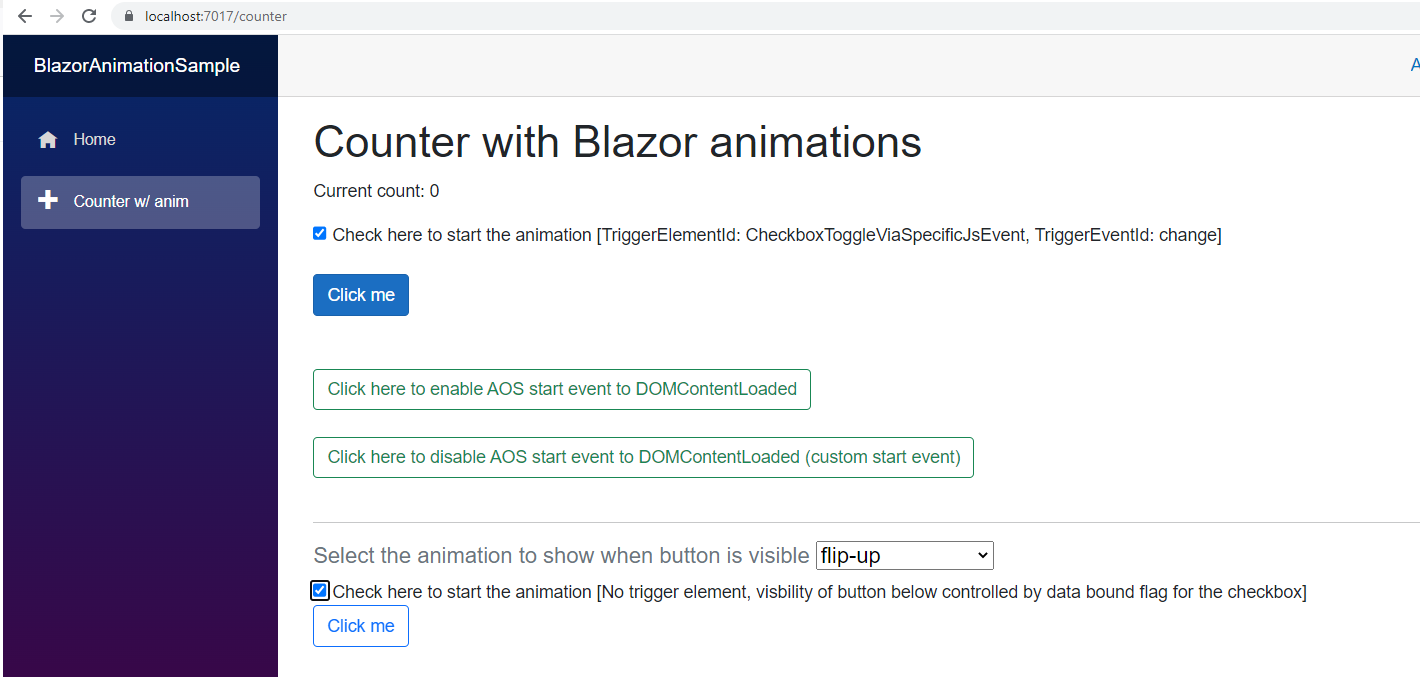
In the component above, we use the parameter ChildContent which is a RenderFragment? which is used in the razor markup. We wrap a div and generate a unique id which is used in Javascript to control the on demand coupling of starting the animation. In many cases, you could just use the default DOMContentLoaded if you want to just play the animation when the element is displayed. Here is how you use the Animation component in an example component:
 
 
@page "/counter"
@inject IJSRuntime JS

<PageTitle>Counter</PageTitle>

<h1>Counter with Blazor animations</h1>

<p role="status">Current count: @currentCount</p>

<input type="checkbox" id="CheckboxToggleViaSpecificJsEvent" />
    Check here to start the animation [TriggerElementId: CheckboxToggleViaSpecificJsEvent, TriggerEventId: change]
<br />
<br />
<Animation Duration="1000" SelectedAnimation="@AnimationNames.Fade" TriggerElementId="CheckboxToggleViaSpecificJsEvent" TriggerEventId="change">
    <button class="btn btn-primary" @onclick="IncrementCount">Click me</button>
</Animation>
<br />
<br />


<button @onclick="AOSRestartStartEvent" class="btn btn-outline-success">
    Click here to enable AOS start event to DOMContentLoaded
</button>
<br /><br />

<button @onclick="AOSCustomStartEvent" class="btn btn-outline-success">
    Click here to disable AOS start event to DOMContentLoaded (custom start event)
</button>
<br />
<br />

<hr />

<label>
    <h5 class="text-muted">
        Select the animation to show when button is visible
        <InputSelect @bind-Value="SelectedAnimation">
            @foreach (var item in Enum.GetValues(typeof(AnimationNames)).Cast<AnimationNames>())
            {
                <option value="@item">@item.GetDisplayName()</option>                
            }
        </InputSelect>
    </h5>
</label>

<br />

<label>  
 <InputCheckbox @bind-Value="@showAnotherCurrentCountBtn" />
   Check here to start the animation [No trigger element, visbility of button below controlled by data bound flag for the checkbox]
</label>

@if (showAnotherCurrentCountBtn){
    <Animation Duration="1500" SelectedAnimation="@SelectedAnimation" Delay="50">
        <button class="btn btn-outline-primary" @onclick="IncrementCount">Click me</button>
    </Animation>
}
<br />
<br />

@code {
    private int currentCount = 0;
    private bool showAnotherCurrentCountBtn = false;

    private AnimationNames SelectedAnimation = AnimationNames.Fade;


    private void IncrementCount()
    {
        currentCount++;
    }

    private async Task AOSRestartStartEvent()
    {
        await JS.InvokeAsync<string>("RestartAosEventToImplicitEventDomContentLoaded");
    }

    private async Task AOSCustomStartEvent()
    {
        await JS.InvokeAsync<string>("DisableAosEventToImplicitEventDomContentLoaded");
    }

} 
 
 
The AnimationNames is an enum which allows you to set one of the pre-defined animations in AOS. It is possible to define a custom (CSS-based) animation to use with AOS too, I might look into that in another article later on.
 
 using System.ComponentModel.DataAnnotations;

namespace BlazorAnimationSample.Components
{

    public enum AnimationNames
    {
        [Display(Name = "fade")]
        Fade = 0,

        [Display(Name = "fade-up")]
        FadeUp,

        [Display(Name = "fade-down")]
        FadeDown,

        [Display(Name = "fade-left")]
        FadeLeft,

        [Display(Name = "fade-right")]
        FadeRight,

        [Display(Name = "fade-up-right")]
        FadeUpRight,

        [Display(Name = "fade-up-left")]
        FadeUpLeft,

        [Display(Name = "fade-down-right")]
        FadeDownRight,

        [Display(Name = "fade-down-left")]
        FadeDownLeft,

        [Display(Name = "flip-up")]
        FlipUp,

        [Display(Name = "flip-down")]
        FlipDown,

        [Display(Name = "flip-left")]
        FlipLeft,

        [Display(Name = "flip-right")]
        FlipRight,

        [Display(Name = "slide-up")]
        SlideUp,

        [Display(Name = "slide-down")]
        SlideDown,

        [Display(Name = "slide-left")]
        SlideLeft,

        [Display(Name = "slide-right")]
        SlideRight,

        [Display(Name = "zoom-in")]
        ZoomIn,

        [Display(Name = "zoom-in-up")]
        ZoomInUp,

        [Display(Name = "zoom-in-down")]
        ZoomInDown,

        [Display(Name = "zoom-in-left")]
        ZoomInLeft,

        [Display(Name = "zoom-in-right")]
        ZoomInRight,

        [Display(Name = "zoom-out")]
        ZoomOut

    }

}


You can clone the Blazor Animation sample easily from Github by following Git command:

git clone https://github.com/toreaurstadboss/BlazorAnimateSample.git

Saturday, 22 April 2023

Tag Helpers in Asp.net Core Mvc 7

This article will present a sample Tag Helper in .net. A Tag Helper is similar to Html Helpers in Asp.net Mvc in .NET Framework, but it is easier to use in HTML as it does not use the special "@-syntax". The Tag helper will render a list using the <ul> and <li> tags. In addition, Bootstrap 5 will be used. Start by creating a razor application with this command:
dotnet new razor -o TagHelpers Then move into the folder TagHelpers and type: code .

Inside Visual Studio Code, hit Ctrl+P and look up the file _ViewImports.cshtml and add the current assembly/solution using:

@addTagHelper *, TagHelpers

This tells that we want to add any TagHelper from the assembly called TagHelpers (the solution we are working with).

@using TagHelpers
@namespace TagHelpers.Pages
@addTagHelper *, Microsoft.AspNetCore.Mvc.TagHelpers
@addTagHelper *, TagHelpers

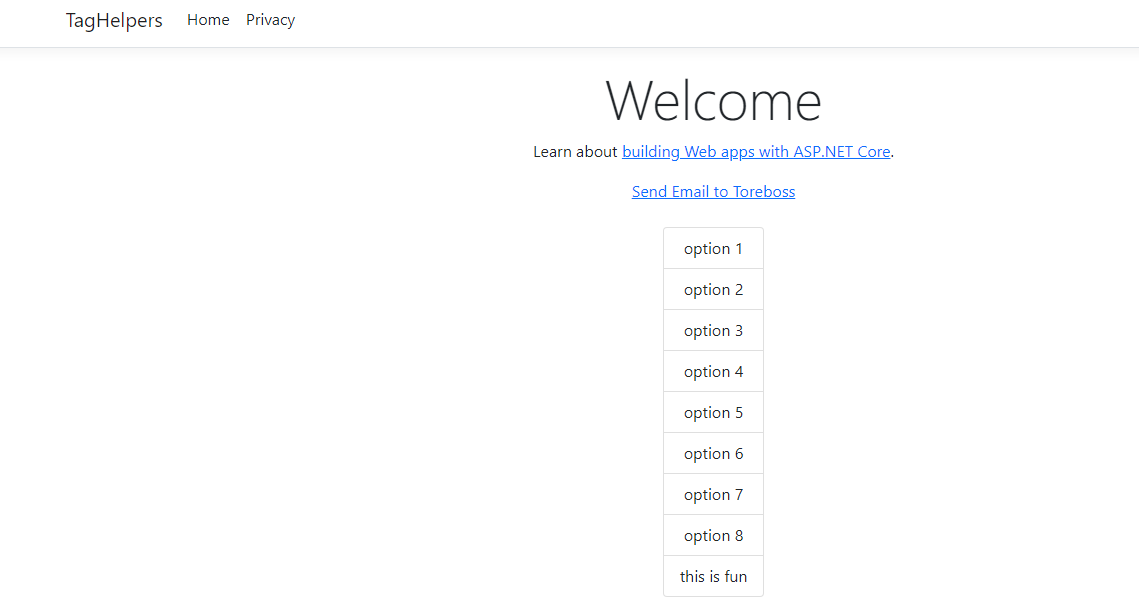
Consider the following HTML :

<list separator="|">option 1| option 2| option 3| option 4| option 5| option 6| option 7| option 8|this is fun<list>
We want to turn that HTML into the list shown in screen shot below :
That is - create a list using an <ul> tag followed by <li> tags inside. Since we need to access the inner content of the HTML here, we have to use ProcessAsync method of derived method from the TagHelper. We create a TagHelper by inheriting from this class and we also have to name the class suffixed by TagHelper by convention. The resulting Tag Helper then looks like this:


using System.Text;
using Microsoft.AspNetCore.Razor.TagHelpers;

namespace TagHelpers.TagHelpers;

public class ListTagHelper : TagHelper {

    public override async Task ProcessAsync(TagHelperContext context, TagHelperOutput output)
    {
        output.TagName = "ul";
        output.Attributes.Add("class", "list-group");
        output.Attributes.Add("style", "display:inline-block"); 
        var existingContent = await output.GetChildContentAsync(); 
        var allContent = existingContent.GetContent();
        var items = allContent.Trim().Split(new[] { Separator }, StringSplitOptions.None);
        var outputHtml = new StringBuilder();
        foreach (var item in items){
            outputHtml.Append($@"<li class=""list-group-item"">{item}</li>");
        }
        output.Content.SetHtmlContent(outputHtml.ToString());        
    }
    public string Separator { get; set; } = ",";
}


We default set the property Separator default to "," to separate items in our list. We could use another separator, such as "|" shown in the markup. If you omit the Separator, "," will be default used. Each public property becomes a recognized attribute in your TagHelper and can be used in the HTML. The TagName is the tag that will be used in the HTML. As we see, we also add 'class' and 'style' attributes here to show a list-group in HTML using Bootstrap 5 classes. We also split the items using the separator, make not that we use the GetChildContentAsync() method on the TagHelperOutput output object, followed by GetContent() method call. Also note that we have to use SetHtmlContent method in case we want to add explicit html content in the content of our 'a' tag here. It is suggested that you stick to string properties in Razor tag helpers instead of other data types.

Monday, 3 April 2023

Using Azure Cognitive Services to summarize articles

I have added a repo on Github for a web scraping app written in .NET MAUI Blazor. It uses Azure Cognitive Services to summarize articles. https://github.com/toreaurstadboss/DagbladetWebscrapper The web scrapper uses the Nuget package for Html agility pack to handle the DOM after downloading articles from the Internet. As the name of the repo suggests, it can be used to read for example Dagbladet articles, without having to waddle through ads. 'Website Scraping' is a term that means extracting data from web sites, or content in general. The following libraries are used in the Razor lib containing the text handling methods to scrap web pages:

<PackageReference Include="Azure.AI.TextAnalytics" Version="5.3.0" />
<PackageReference Include="HtmlAgilityPack" Version="1.11.52" />
<PackageReference Include="Microsoft.AspNetCore.Components.Web" Version="6.0.19" />
Let's first look at the SummarizationUtil class. This uses TextAnalyticsClient in Azure.AI.TextAnalytics. We will summarize articles into five sentence summaries using the
Azure AI text analytics client.


using Azure.AI.TextAnalytics;
using System.Text;

namespace Webscrapper.Lib
{
	public class SummarizationUtil : ISummarizationUtil
	{

		public async Task<List<ExtractiveSummarizeResult>> GetExtractiveSummarizeResult(string document, TextAnalyticsClient client)
		{
			var batchedDocuments = new List<string>
			{
				document
			};
			var result = new List<ExtractiveSummarizeResult>();
			var options = new ExtractiveSummarizeOptions
			{
				 MaxSentenceCount = 5
			};
			var operation = await client.ExtractiveSummarizeAsync(Azure.WaitUntil.Completed, batchedDocuments, options: options);
			await foreach (ExtractiveSummarizeResultCollection documentsInPage in operation.Value)
			{
				foreach (ExtractiveSummarizeResult documentResult in documentsInPage)
				{
					result.Add(documentResult);
				}
			}
			return result;
		}

		public async Task<string> GetExtractiveSummarizeSentectesResult(string document, TextAnalyticsClient client)
		{
			List<ExtractiveSummarizeResult> summaries = await GetExtractiveSummarizeResult(document, client);
			return string.Join(Environment.NewLine, summaries.Select(s => s.Sentences).SelectMany(x => x).Select(x => x.Text));
		}

	}

}

We set up the extraction here to return a maximum of five sentences. Note the use of await foreach here. (async ienumerable) Here is a helper method to get a string from a ExtractiveSummarizeResult.

using Azure.AI.TextAnalytics;
using System.Text;

namespace Webscrapper.Lib
{

	public static class SummarizationExtensions
	{

		public static string GetExtractiveSummarizeResultInfo(this ExtractiveSummarizeResult documentResults)
		{
			var sb = new StringBuilder();

			if (documentResults.HasError)
			{
				sb.AppendLine($"Error!");
				sb.AppendLine($"Document error code: {documentResults.Error.ErrorCode}.");
				sb.AppendLine($"Message: {documentResults.Error.Message}");
			}
			else
			{
				sb.AppendLine($"SUCCESS. There are no errors encountered while summarizing the document");
			}

			sb.AppendLine($"Extracted the following {documentResults.Sentences.Count} sentence(s):");
			sb.AppendLine();

			foreach (ExtractiveSummarySentence sentence in documentResults.Sentences)
			{
				sb.AppendLine($"Sentence: {sentence.Text} Offset: {sentence.Offset} Rankscore: {sentence.RankScore} Length:{sentence.Length}");
				sb.AppendLine();
			}
			return sb.ToString();
		}
	}

}


Here is a factory method to create a TextAnalyticsClient.


using Azure;
using Azure.AI.TextAnalytics;

namespace Webscrapper.Lib
{
    public static class TextAnalyticsClientFactory
    {

        public static TextAnalyticsClient CreateClient()
        {
            string? uri = Environment.GetEnvironmentVariable("AZURE_COGNITIVE_SERVICE_ENDPOINT", EnvironmentVariableTarget.Machine);
            string? key = Environment.GetEnvironmentVariable("AZURE_COGNITIVE_SERVICE_KEY", EnvironmentVariableTarget.Machine);
            if (uri == null)
            {
                throw new ArgumentNullException(nameof(uri), "Could not get system environment variable named 'AZURE_COGNITIVE_SERVICE_ENDPOINT' Set this variable first.");
            }
            if (uri == null)
            {
                throw new ArgumentNullException(nameof(uri), "Could not get system environment variable named 'AZURE_COGNITIVE_SERVICE_KEY' Set this variable first.");
            }
            var client = new TextAnalyticsClient(new Uri(uri!), new AzureKeyCredential(key!));
            return client;
        }

    }
}


To use Azure Cognitive Services, you have to get the endpoint (an url) and a service key for your account in Azure portal after having activated Azure Cognitive Services. The page extraction util looks like this, note the use of Html Agility pack.


using HtmlAgilityPack;
using System.Text;

namespace Webscrapper.Lib
{
	public class PageExtractionUtil : IPageExtractionUtil
	{

		public async Task<string?> ExtractHtml(string url, bool includeTags)
		{
			if (string.IsNullOrEmpty(url)) 
				return null;
			var httpClient = new HttpClient();

			string pageHtml = await httpClient.GetStringAsync(url);
			if (string.IsNullOrEmpty(pageHtml))
			{
				return null;
			}

			var htmlDoc = new HtmlDocument(); 
			htmlDoc.LoadHtml(pageHtml);
			var textNodes = htmlDoc.DocumentNode.SelectNodes("//h1|//h2|//h3|//h4|//h5|//h6|//p")
				.Where(n => !string.IsNullOrWhiteSpace(n.InnerText)).ToList();
			var sb = new StringBuilder();
			foreach (var textNode in textNodes)
			{
				var text = textNode.InnerText;
				if (includeTags)
				{
					sb.AppendLine($"<{textNode.Name}>{textNode.InnerText}</{textNode.Name}>");
				}
				else
				{
					sb.AppendLine($"{textNode.InnerText}");
				}
			}
			return sb.ToString();
		}
	}
}


Let's look at an example usage :

@page "/"
@inject ISummarizationUtil SummarizationUtil
@inject IPageExtractionUtil PageExtractionUtil

@using DagbladetWebscrapper.Models;

<h1>Dagbladet Artikkel Oppsummering</h1>

<EditForm Model="@Model" OnValidSubmit="@Submit" class="form-group">
    <DataAnnotationsValidator />
    <ValidationSummary />
  
    <div class="form-group row">
    <label for="Model.ArticleUrl">Url til artikkel</label>
    <InputText @bind-Value="Model!.ArticleUrl" placeholder="Skriv inn url til artikkel i Dagbladet" />
    </div>

    <div class="form-group row">
    <span>Artikkelens oppsummering</span>
    <InputTextArea readonly="readonly" placeholder="Her dukker opp artikkelens oppsummering" @bind-Value="Model!.SummarySentences" rows="5"></InputTextArea>
    </div>

    <div class="form-group row">
    <span>Artikkelens tekst</span>
    <InputTextArea readonly="readonly" placeholder="Her dukker opp teksten til artikkelen" @bind-Value="Model!.ArticleText" rows="5"></InputTextArea>
    </div>
    
    <button type="submit">Submit</button>


</EditForm>

@code {
    private Azure.AI.TextAnalytics.TextAnalyticsClient _client;

    public IndexModel Model { get; set; } = new();

    private async void Submit()
    {
        string articleText = await PageExtractionUtil.ExtractHtml(Model!.ArticleUrl, false);
        Model.ArticleText = articleText;
        if (_client == null)
        {
            _client = TextAnalyticsClientFactory.CreateClient();
        }
        string summaryText = await SummarizationUtil.GetExtractiveSummarizeSentectesResult(articleText, _client);
        Model.SummarySentences = summaryText;

        StateHasChanged();
    }   

}


The view model class for the form looks like this.


using System.ComponentModel.DataAnnotations;

namespace DagbladetWebscrapper.Models
{
	public class IndexModel
	{
        [Required]
        public string? ArticleUrl { get; set; }

        public string SummarySentences { get; set; }

        public string ArticleText { get; set; }
    }
}


Let's look at a screen shot that shows the app in use. It targets an article on the tabloid newspaper Dagbladet in Norway. This tabloid is notorious for writing sensational titles of articles so you have to click into the article (e.g. 'clickbait') and then inside the article, you have to wade through lots of ads. Here, you now have an app, where you can open up www.dagbladet.no and find a link to an article and now extract the text and get a five sentence summary using Azure AI Cognitive services in a .NET MAUI app.

Saturday, 4 March 2023

Generic math - Factorial method

Here is a example of a generic math factorial method in C# 11. Generic math allows you to make numeric methods that makes use of the INumber generic interface, which got many static virtual methods where you can make a numeric method that supports different kinds of number types, such as decimal, int, float and double. The code below calculates the factorial of some values in an array. We have inserted a double value here that shows that Factorial of a double or any number with decimal works a bit different than ints, as the decimal part takes part here. The factorial of 0! is defined as 1 and we multiply n with n-1 as long as n > 0. Note the use of T.One and T.Zero here, defined as
static virtual members of the different number types in C#.


void Main()
{
	var someNums = new[] { 1, 2, 3, 3.141592, 5};
	var fact = someNums.Select(n =>  Factorial(n));
	fact.Dump();
	
}

T Factorial<T>(T num)
where T : INumber<T>
{
	var result = T.One;
	while (num > T.Zero){
		result *= num;
		num--;
	}
	return result;
}


Output shows the result in Linqpad 7 after having specified using .NET 7: