Saturday, 12 June 2021

Concepts of a simple draw ink control in Windows Forms

This article will present a simple draw ink control in Windows Forms. The code is run in Linqpad and the concepts here should be easily portable to a little application. Note - there is already built in controls for Windows Forms for this (and WPF and UWP too). That is not the point of this article. The point is to display how you can use System.Reactive and Observable.FromEventPattern method to create an event source stream from
CLR events so you can build reactive applications where the source pushes updates to its target / receiver instead of traditional pull based scenario of event subscriptions. First off, we install Linqpad from: https://www.linqpad.net I used Linqpad 5 for this code, you can of course download Linqpad 6 with .Net core support, but this article is tailored for Linpad 5 and .NET Framework. After installing Linqpad 5, start it and hit F4. Choose Add Nuget. Now choose Search online and type the following four nuget packages to get started with Reactive extensions for .NET.
  • System.Reactive
  • System.Reactive.Core
  • System.Reactive.Interfaces
  • System.Reactive.Linq
Also choose Add.. and choose System.Windows.Forms. Also, choose the tab Additional Namespace Imports. Import these namespaces
  • System.Reactive
  • System.Reactive.Linq
  • System.Windows.Forms
Over to the code, first we create a Form with a PictureBox to draw onto like this in C# program:


void Main()
{
	var form = new Form();
	form.Width = 800;
	form.Height = 800;
	form.BackColor = Color.White;
	
	var canvas = new PictureBox();
	canvas.Height = 400;
	canvas.Width = 400;
	canvas.BackColor = Color.AliceBlue;
	form.Controls.Add(canvas);
    .. //more code soon


Next up we create a list of Point to add the points to. We also use Observable.FromEventPattern to track events using the System.Reactive method to create an observable from a CLR event. We then subscribe to the three events we have set up with observables and add the logic to draw anti-aliased Bezier curves. Actually, drawing a Bezier curve usually consists of the end user defining four control points, the start and end of the bezier line and two control points (for the simplest Bezier curve). However, I chose anti-aliased Bezier curves that just uses the last four points from the dragged line, since smooth Bezier curves looks way better than using DrawLine for example for simple polylines. I use GDI CreateGraphics() method of the Picturebox (this is also available on most other Windows Forms controls, including Forms, but I wanted to have the drawing restricted to the PictureBox). The full code then is the entire code snippet below:
 
 void Main()
{
	var form = new Form { Width = 800, Height = 800, BackColor = Color.White };
	var canvas = new PictureBox { Height = 400, Width = 400, BackColor = Color.AliceBlue };
	form.Controls.Add(canvas);	
    var points = new List<Point>();
	bool isDrag = false;	
	var mouseDowns = Observable.FromEventPattern<MouseEventArgs>(canvas, "MouseDown");
	var mouseUps = Observable.FromEventPattern<MouseEventArgs>(canvas, "MouseUp");
	var mouseMoves = Observable.FromEventPattern<MouseEventArgs>(canvas, "MouseMove");
	mouseDowns.Subscribe(m =>
	{
		if (m.EventArgs.Button == MouseButtons.Right)
		{
			isDrag = false;
			points.Clear();
			canvas.CreateGraphics().Clear(Color.AliceBlue);
			return;
		}
	 isDrag = true;	 
	});	
	mouseUps.Subscribe(m => {
		isDrag = false;
	});	
	mouseMoves.Subscribe(move =>  {
	 points.Add(new Point(move.EventArgs.Location.X, move.EventArgs.Location.Y));
	 if (isDrag && points.Count > 4) {
			//form.CreateGraphics().DrawLine(new Pen(Color.Blue, 10), points[points.Count - 2].X, points[points.Count - 2].Y, points[points.Count - 1].X, points[points.Count - 1].Y);
			var pt1 = new PointF(points[points.Count - 4].X, points[points.Count - 4].Y);
			var pt2 = new PointF(points[points.Count - 3].X, points[points.Count - 3].Y);
			var pt3 = new PointF(points[points.Count - 2].X, points[points.Count - 2].Y);
			var pt4 = new PointF(points[points.Count - 1].X, points[points.Count - 1].Y);			
			var graphics = canvas.CreateGraphics();
			graphics.SmoothingMode = System.Drawing.Drawing2D.SmoothingMode.AntiAlias;
			graphics.DrawBezier(new Pen(Color.Blue, 4.0f), pt1, pt2, pt3, pt4);			
		}		
	});	
	form.Show();
}


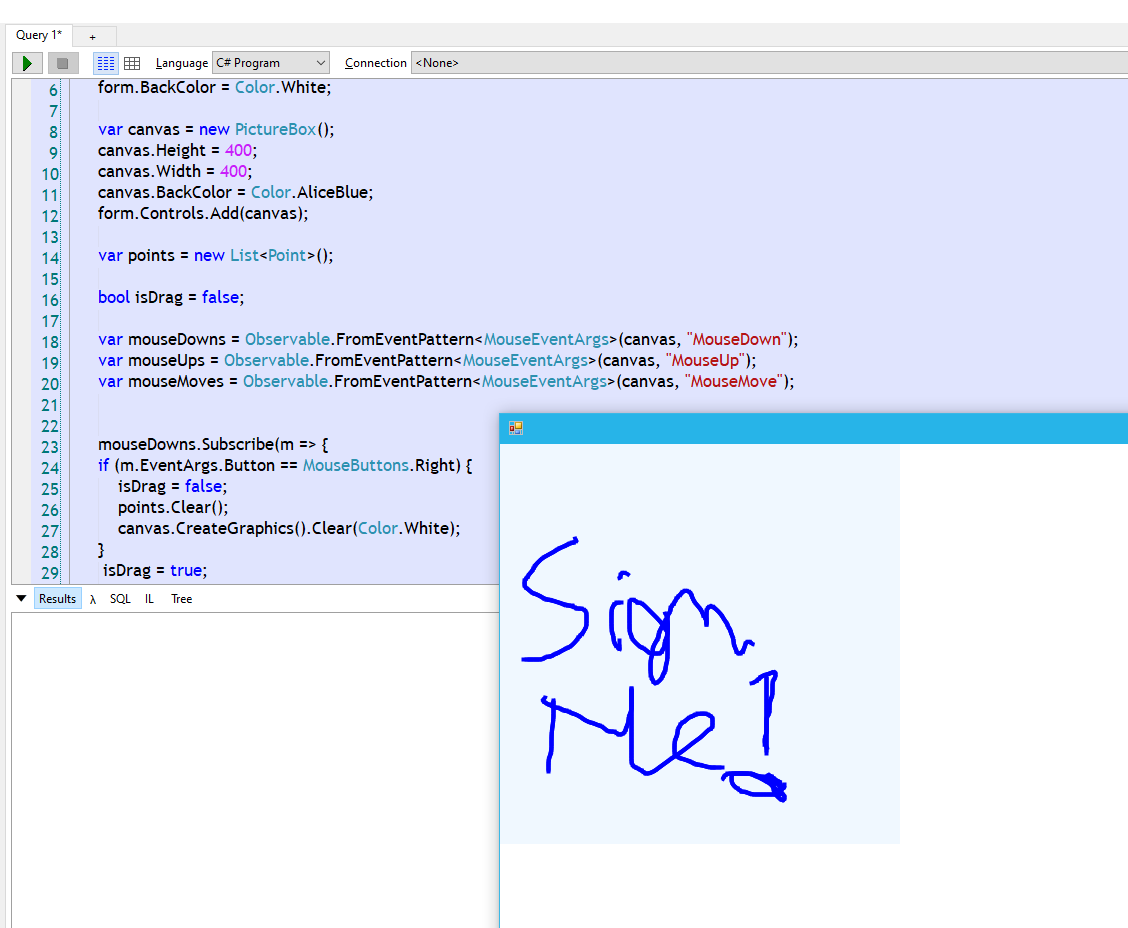
Linqpad/System.Reactive/GDI Windows Forms in action ! Screenshot:
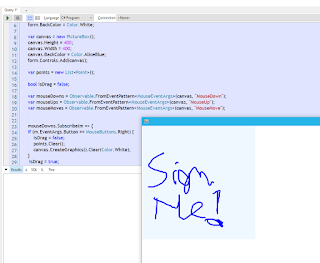
I have added comments here for defining a polyline also instead of Bezier, since this also works and is quicker than the nicer Bezier curve. Maybe you want to display this on a simple device with less processing power etc. To clear the line, just hit right click button. To start drawing, just left click and drag and let go again. Now look how easy this code really is to create a simple Ink control in Windows Forms ! Of course Windows Forms today are more and more "dated" compared to younger frameworks, but it still does its job. WPF got its own built-in InkControl. But in case you want an Ink control in Windows Forms, this is an easy way of creating one and also a good Hello World to Reactive extensions. In .NET Core, the code should be really similar to the code above. Windows Forms is available with .NET Core 3.0 or newer. https://devblogs.microsoft.com/dotnet/windows-forms-designer-for-net-core-released/
Monday, 7 June 2021

Json serialization using Utf8JsonReaderSerializer in .net core

.NET 5 and .net core contains a lot of new methods for Json functionality in the System.Text.Json namespace. I created a helper class for reading a file using Utf8JsonReaderSerializer and this just outputs the json to a formatted json string. With optimizations, the serialization could be done even faster. For now, I need to use a conversion between StringBuilder toString to remove last commas of arrays and properties of objects as the Utf8JsonReaderSerializer is sequential, forward-only as mentioned in the API page at: https://docs.microsoft.com/en-us/dotnet/api/system.text.json.utf8jsonreader?view=net-5.0
This is the helper method I came up with to read a file and take the way via Utf8JsonReaderSerializer:
 

using System;
using System.IO;
using System.Linq;
using System.Text;
using System.Text.Json;

namespace SystemTextJsonTestRun
{
    public static class Utf8JsonReaderSerializer
    {

        public static string ReadFile(string filePath)
        {         
            if (!File.Exists(filePath))
            {
                throw new FileNotFoundException(filePath);
            }

            var jsonBytes = File.ReadAllBytes(filePath);
            var jsonSpan = jsonBytes.AsSpan();
            var json = new Utf8JsonReader(jsonSpan);
            var sb = new StringBuilder();

            while (json.Read())
            {
                if (json.TokenType == JsonTokenType.StartObject)
                {
                    sb.Append(Environment.NewLine);
                }
                else if (json.TokenType == JsonTokenType.EndObject)
                {
                    //remove last comma added 

                    sb.RemoveLast(",");

                    sb.Append(Environment.NewLine);
                }

                if (json.CurrentDepth > 0)
                {
                    for (int i = 0; i < json.CurrentDepth; i++)
                    {
                        sb.Append(" "); //space indentation
                    }
                }

                sb.Append(GetTokenRepresentation(json));


                if (json.TokenType == JsonTokenType.EndObject || json.TokenType == JsonTokenType.EndArray)
                {
                    sb.AppendLine();
                }

                if (new[] { JsonTokenType.String, JsonTokenType.Number, JsonTokenType.Null, JsonTokenType.False,
                JsonTokenType.Number, JsonTokenType.None, JsonTokenType.True }.Contains(json.TokenType))
                {
                    sb.AppendLine(",");
                }

            }

            //remove last comma for EndObject 

            sb.RemoveLast(",");

            return sb.ToString(); 


        }


        private static string GetTokenRepresentation(Utf8JsonReader json) =>
          json.TokenType switch
          {
              JsonTokenType.StartObject => $"{{{Environment.NewLine}",
              JsonTokenType.EndObject => "},",
              JsonTokenType.StartArray => $"[{Environment.NewLine}",
              JsonTokenType.EndArray => $"]",
              JsonTokenType.PropertyName => $"\"{json.GetString()}\":",
              JsonTokenType.Comment => json.GetString(),
              JsonTokenType.String => $"\"{json.GetString()}\"",
              JsonTokenType.Number => GetNumberToString(json),
              JsonTokenType.True => json.GetBoolean().ToString().ToLower(),
              JsonTokenType.False => json.GetBoolean().ToString().ToLower(),
              JsonTokenType.Null => string.Empty,
              _ => "Unknown Json token type"
          };

        //TODO: Use the Try methods of the Utf8JsonReader more than trying and failing here 

        private static string GetNumberToString(Utf8JsonReader json)
        {
            try
            {
                if (int.TryParse(json.GetInt32().ToString(), out var res))
                    return res.ToString();
            }
            catch
            {
                try
                {
                    if (float.TryParse(json.GetSingle().ToString(), out var resFloat))
                        return resFloat.ToString();
                }
                catch
                {
                    try
                    {
                        if (decimal.TryParse(json.GetDouble().ToString(), out var resDes))
                            return resDes.ToString();
                    }
                    catch
                    {
                        return "?";
                    }
                }
            }
            return $"?"; //fallback to a string if not possible to deduce the type
        }

    }
}


The json file I tested the code with inputted came out again as this string:

{
 "courseName": "Build Your Own Application Framework",
 "language": "C#",
 "author":
 {
  "firstName":  "Matt",
  "lastName":  "Honeycutt"

 },
 "publishedAt": "2012-03-13T12:30:00.000Z",
 "publishedYear": 2014,
 "isActive": true,
 "isRetired": false,
 "tags": [
  "aspnet",
  "C#",
  "dotnet"
 ]

}

This code validates against Json Lint also: https://jsonlint.com Now why even bother parsing a Json file just to output the file again to a json string? Well, first of all, we use a very fast parser Utf8JsonReader from .NET and we can for example do various processing along the forward-only sequential processing and formatting indented the file. Utf8JsonReader will also validate the json document strictly to the Json specification - RFC 8259. Hence, we can get validation for free here to by catching any errors and returning true or false in method that scans this file by adding a method for this looking at the json.Read() method (if it returns false) or catching JsonException if a node of the json document does not validate. Also, a low level analysis of the Utf8JsonReader let's you see which different tokens of the json document structure .NET provides. We could transform the document or add specific formatting and so on by altering the code displayed here. To run the code test with a sample json document like this:

   class Program
    {
        static void Main(string[] args)
        {
            Console.WriteLine("Utf8JsonReader sample");

            string json = Utf8JsonReaderSerializer.ReadFile("sample.json");
            string tempFile = Path.ChangeExtension(Path.GetTempFileName(), "json"); 
            File.WriteAllText(tempFile, json);
            Console.WriteLine($"Json file read and processed result in location: {tempFile}");
            Console.WriteLine($"Json file contents: {Environment.NewLine}{json}");

        
        }

I have added the code for this here: https://github.com/toreaurstadboss/Utf8DataJsonReaderTest/

Sunday, 25 April 2021

Making NUnit tests run in Team City for NUnit 3.x

Team City has several bugs when it comes to running NUnit tests. The following guide shows how you can prepare the Team City build agent to run NUnit 3.x tests. We need first to install NUnit Console runner Tips around this was found in the following Stack Overflow thread: This is also mentioned in the documentation of Team City: First off, add two Command line steps and add the two commands into each step - this step can be run at the start of the pipeline in Team City.


%teamcity.tool.NuGet.CommandLine.DEFAULT%\tools\nuget.exe install NUnit.Console -version 3.10.0 -o packages  -ExcludeVersion -OutputDirectory %system.teamcity.build.tempDir%\NUnit %teamcity.tool.NuGet.CommandLine.DEFAULT%\tools\nuget.exe install NUnit.Extension.NUnitProjectLoader -version 3.6.0 -o packages
The following Nuget packages for NUnit was used:
  • NUnit 3.2.0
  • NUnit.ConsoleRunner 3.10.0
  • NUnit.Extension.NUnitProjectLoader 3.6.0
  • NUnit.Extension.TeamCityEventListener 1.0.7
  • NUnit3TestAdapter 3.16.1
Inside the NUnit runner type step, configure also the NUnit console path: Use this path:
packages\NUnit.ConsoleRunner.3.8.0\tools\nunit3-console.exe For the testassemblies make sure you use a path like this: **\bin\%BuildConfiguration%\*.Test.dll Add the %BuildConfiguration% parameter and set it to: Debug
More tips here: https://stackoverflow.com/questions/57953724/nunit-teamcity-process-exited-with-code-4

And here:
https://stackoverflow.com/questions/36996564/nunit-3-2-1-teamcity-could-not-load-file-or-assembly-nunit-framework

Sunday, 18 April 2021

Implementing a Strip method with regex in C#

This article will present a Strip method that accepts a Regex which defines the pattern of allowed characters. It is similar to Regex Replace, but it works in the inverted way. Instead of removing the chars matching the pattern in Regex.Replace, this utility method instead lets you define the allowed chars, i.e. these chars defined in this regex are the chars I want to keep. First off we define the utility method, as an extension method.
 

        /// <summary>
        /// Strips away every character not defined in the provided regex <paramref name="allowedChars"/>
        /// </summary>
        /// <param name="s">Input string</param>
        /// <param name="allowedChars">The allowed characters defined in a Regex with pattern, for example: [A-z|0-9]+/</param>
        /// <returns>Input string with only the allowed characters</returns>
        public static string Strip(this string s, Regex allowedChars)
        {
            if (s == null)
            {
                return s;
            }
            if (allowedChars == null)
            {
                return string.Empty;
            }
            Match match = Regex.Match(s, allowedChars.ToString());
            List<char> allowedAlphabet = new List<char>();
            while (match.Success)
            {
                if (match.Success)
                {
                    for (int i = 0; i < match.Groups.Count; i++)
                    {
                        allowedAlphabet.AddRange(match.Groups[i].Value.ToCharArray());
                    }
                }
                match = match.NextMatch();
            }
            return new string(s.Where(ch => allowedAlphabet.Contains(ch)).ToArray());
        }
        
          
Here are some tests that tests out this Strip method:
 
 
 	 	[Test]
        [TestCase("abc123abc", "[A-z]+", "abcabc")]
        [TestCase("abc123def456", "[0-9]+", "123456")]
     	[TestCase("The F-32 Lightning II is a newer generation fighter jets than the F-16 Fighting Falcon", "[0-9]+", "3216")]
		[TestCase("Here are some Norwegian letters : ÆØÅ and in lowercase: æøå", "[æ|ø|å]", "æøå")]
		public void TestStripWithRegex(string input, string regexString, string expectedOutput)
        {
            var regex = new Regex(regexString);
            input.Strip(regex).Should().Be(expectedOutput);
        }


Monday, 1 March 2021

Implementing ToDictionary in Typescript

In this article I will present some code I just did in my SimpleTsLinq library, which you can easily install using Npm. The library is here on Npmjs.com : The ToDictionary method looks like this:

  
  if (!Array.prototype.ToDictionary) {
  Array.prototype.ToDictionary = function <T>(keySelector: (arg: T) => any): any {
    let hash = {};
    this.map(item => {
      let key = keySelector(item);
      if (!(key in hash)) {
        hash[key] = item;
      }
      else {
        if (!(Array.isArray(hash[key]))) {
          hash[key] = [hash[key]];
        }
        hash[key].push(item);
      }
    });
    return hash;
  }
}
  

Here is a unit test (spec) for this method :

  
    it('can apply method ToDictionary on an array, allowing specificaton of a key selector for the dictionary object', () => {
    let heroes = [{ name: "Han Solo", age: 47, gender: "M" }, { name: "Leia", age: 29, gender: "F" }, { name: "Luke", age: 24, gender: "M" }, { name: "Lando", age: 47, gender: "M" }];
    let dictionaryOfHeroes = heroes.ToDictionary<Hero>(x => x.gender);

    let expectedDictionary = {
      "F": {
        name: "Leia", age: 29, gender: "F"
      },
      "M": [
        { name: "Han Solo", age: 47, gender: "M" },
        { name: "Luke", age: 24, gender: "M" },
        { name: "Lando", age: 47, gender: "M" }
      ]
    };
    expect(dictionaryOfHeroes).toEqual(expectedDictionary);
  });


You can also test out this library using Npm RunKit here: We can make a dictionary with different keys, image example:

Friday, 5 February 2021

Overcoming limitations in Contains in Entity Framework

Entity Framework will hit a performance penalty bottleneck or crash if Contains contains a too large of a list. Here is how you can avoid this, using Marc Gravell's excellent approach in this. I am including some tests of this. I also suggest you consider LinqKit to use expandable queries to make this all work. First off, this class contains the extension methods for Entity Framework for this:
 
 
 public class EntityExtensions {
 
 /// <summary>
        /// This method overcomes a weakness with Entity Framework with Contains where you can partition the values to look for into 
        /// blocks or partitions, it is modeled after Marc Gravell's answer here:
        /// https://stackoverflow.com/a/568771/741368
        /// Entity Framework hits a limit of 2100 parameter limit in the DB but probably comes into trouble before this limit as even
        /// queries with several 100 parameters are slow.
        /// </summary>
        /// <typeparam name="T"></typeparam>
        /// <typeparam name="TValue"></typeparam>
        /// <param name="source">Source, for example DbSet (table)</param>
        /// <param name="selector">Selector, key selector</param>
        /// <param name="blockSize">Size of blocks (chunks/partitions)</param>
        /// <param name="values">Values as parameters</param>
        /// 
        /// <example>
        ///   /// <[!CDATA[
        /// /// The following EF query will hit a performance penalty or time out if EF gets a too large list of operationids:
        /// ///
        /// /// var patients = context.Patients.Where(p => operationsIds.Contains(p.OperationId)).Select(p => new {
        /// ///  p.OperationId,
        /// ///  p.
        /// /// });
        /// ///
        /// /// 
        /// /// var patients = context.Patients.AsExpandable().InRange(p => p.OperationId, 1000, operationIds)
        /// //.Select(p => new
        /// //{
        /// //    p.OperationId,
        /// //    p.IsDaytimeSurgery
        /// //}).ToList();
        /// //]]
        /// </example>
        /// <returns></returns>
        public static IEnumerable<T> InRange<T, TValue>(
                this IQueryable<T> source,
                Expression<Func<T, TValue>> selector,
                int blockSize,
                IEnumerable<TValue> values)
        {
            MethodInfo method = null;
          
            foreach (MethodInfo tmp in typeof(Enumerable).GetMethods(
                    BindingFlags.Public | BindingFlags.Static))
            {
                if (tmp.Name == "Contains" && tmp.IsGenericMethodDefinition
                        && tmp.GetParameters().Length == 2)
                {
                    method = tmp.MakeGenericMethod(typeof(TValue));
                    break;
                }
            }

            if (method == null) throw new InvalidOperationException(
                   "Unable to locate Contains");
            foreach (TValue[] block in values.GetBlocks(blockSize))
            {
                var row = Expression.Parameter(typeof(T), "row");
                var member = Expression.Invoke(selector, row);
                var keys = Expression.Constant(block, typeof(TValue[]));
                var predicate = Expression.Call(method, keys, member);
                var lambda = Expression.Lambda<Func<T, bool>>(
                      predicate, row);
                foreach (T record in source.Where(lambda))
                {
                    yield return record;
                }
            }

        }

        /// <summary>
        /// Similar to Chunk, it partitions the IEnumerable source and returns the chunks or blocks by given blocksize. The last block can have variable length
        /// between 0 to blocksize since the IEnumerable can have of course variable size not evenly divided by blocksize. 
        /// </summary>
        /// <typeparam name="T"></typeparam>
        /// <param name="source"></param>
        /// <param name="blockSize"></param>
        /// <returns></returns>
        public static IEnumerable<T[]> GetBlocks<T>(
                this IEnumerable<T> source, int blockSize)
        {
            List<T> list = new List<T>(blockSize);
            foreach (T item in source)
            {
                list.Add(item);
                if (list.Count == blockSize)
                {
                    yield return list.ToArray();
                    list.Clear();
                }
            }
            if (list.Count > 0)
            {
                yield return list.ToArray();
            }
        }
        
  }


Linqkit allows us to rewrite queries for EF using expression trees. One class is ExpandableQuery. See the links here for further info about Linqkit and Linq-Expand.
 
  	/// <summary>Refer to http://www.albahari.com/nutshell/linqkit.html and
	/// http://tomasp.net/blog/linq-expand.aspx for more information.</summary>
	public static class Extensions
	{
		public static IQueryable<T> AsExpandable<T> (this IQueryable<T> query)
		{
			if (query is ExpandableQuery<T>) return (ExpandableQuery<T>)query;
			return new ExpandableQuery<T> (query);
		}
 
This all seems to look a bit cryptic, so lets see an integration test of mine instead:


        [Test]
        [Category(TestCategories.IntegrationTest)]
        public void GetDataChunkedDoesNotFail()
        {
            using (var context = DbContextManager.ScopedOpPlanDataContext)
            {
                int[] operationalUnitIds = new int[]{ 107455, 105431, 107646, 107846 };
                var reportItems = context.OperationalUnits.AsExpandable().InRange(ou => ou.FreshOrganizationalUnitId, 2, operationalUnitIds).ToList();
                Assert.IsNotNull(reportItems);           
                CollectionAssert.IsNotEmpty(reportItems); 
            }
        }


This shows how to use the InRange method of Marc Gravell. We use the AsExpandable method to allow us to hack into the expression tree of Entity Framework and the InRange method allows us to partition the work for EF. We do not know the siz of operational unit ids (usually it is low and another entity - operation Ids is of variable length and will in production blow up since we in some cases surpass the 2100 limit of Contains). And as I said before, Entity Framework will hit a performance bottleneck before 2100 parameteters are sent into the Contains method. This way of fixing it up will allow you to get stable running code in production again against large data and variable length. This code is tested with Entity Framework 6.2.0. Another article considers performance considerations for Contains and different approaches here: https://www.toptal.com/dot-net/entity-framework-performance-using-contains IMHO this approach has proven stable in a production environment for several years with large data and can be considered a stable workaround for EF slow Contains performance. I have made the LinqKit fork LinqKit.AsyncSupport available on Nuget here now: https://www.nuget.org/packages/ToreAurstadIt.LinqKit.AsyncSupport/1.1.0 This makes it possible to perform Async calls and expandable queries, i.e. queries with inline method calls for example. The nuget package now also sports symbol package for easier debugging experience. The source code for LinqKit.AsyncSupport is available here: https://github.com/toreaurstadboss/LinqKit.AsyncSupport

Thursday, 31 December 2020

Simple property grid in Blazor

This artile will present a simple property grid in Blazor I have made. The component relies on standard stuff like Bootstrap, jQuery, Twitter Bootstrap and Font Awesome. But the repo url shown here links to the Github repo of mine which can be easily forked if you want to add features (such as editing capabilities). The component already supports nested levels, so if the object you inspect has a hierarchical structure, this is shown in this Blazor component. Having a component to inspect objects in Blazor is great as Blazor lacks inspect tools (since the app is compiled into a web assembly, we cannot easily inspect state of objects in the app other than the DOM and Javascript objects. With this component we can get basic inspection support to inspect state of the object in the app you desire to inspect). The Github repo contains also a bundled application which uses the component and shows a sample use-case (also shown in Gif video below). I have tested the component with three levels of depth for a sample object (included in the repo). The component is available here on my Github repo:
 
 git clone https://github.com/toreaurstadboss/BlazorPropertyGrid/tree/main/BlazorPropertyGrid
 
https://github.com/toreaurstadboss/BlazorPropertyGrid/tree/main/BlazorPropertyGrid
The component consists of two components where one of them is used in a recursive manner to support nested object structure. The top level component got this code-behind class.
PropertyGridComponentBase.cs
using System.Collections.Generic; using System.Reflection; using Microsoft.AspNetCore.Components; using Microsoft.AspNetCore.Components.Web; using Microsoft.JSInterop; namespace BlazorPropertyGridComponents.Components { public class PropertyGridComponentBase : ComponentBase { [Inject] public IJSRuntime JsRuntime { get; set; } [Parameter] public object DataContext { get; set; } public Dictionary<string, PropertyInfoAtLevelNodeComponent> Props { get; set; } public PropertyGridComponentBase() { Props = new Dictionary<string, PropertyInfoAtLevelNodeComponent>(); } protected override void OnParametersSet() { Props.Clear(); if (DataContext == null) return; Props["ROOT"] = MapPropertiesOfDataContext(string.Empty, DataContext, null); StateHasChanged(); } private bool IsNestedProperty(PropertyInfo pi) => pi.PropertyType.IsClass && pi.PropertyType.Namespace != "System"; private PropertyInfoAtLevelNodeComponent MapPropertiesOfDataContext(string propertyPath, object parentObject, PropertyInfo currentProp) { if (parentObject == null) return null; var publicProperties = parentObject.GetType() .GetProperties(BindingFlags.Public | BindingFlags.Instance); var propertyNode = new PropertyInfoAtLevelNodeComponent { PropertyName = currentProp?.Name ?? "ROOT", PropertyValue = parentObject, PropertyType = parentObject.GetType(), FullPropertyPath = TrimFullPropertyPath($"{propertyPath}.{currentProp?.Name}") ?? "ROOT", IsClass = parentObject.GetType().IsClass && parentObject.GetType().Namespace != "System" }; foreach (var p in publicProperties) { var propertyValue = p.GetValue(parentObject, null); if (!IsNestedProperty(p)) { propertyNode.SubProperties.Add(p.Name, new PropertyInfoAtLevelNodeComponent { IsClass = false, FullPropertyPath = TrimFullPropertyPath($"{propertyPath}.{p.Name}"), PropertyName = p.Name, PropertyValue = propertyValue, PropertyType = p.PropertyType //note - SubProperties are default empty if not nested property of course. } ); } else { //we need to add the sub property but recurse also call to fetch the nested properties propertyNode.SubProperties.Add(p.Name, new PropertyInfoAtLevelNodeComponent { IsClass = true, FullPropertyPath = propertyPath + p.Name, PropertyName = p.Name, PropertyValue = MapPropertiesOfDataContext(TrimFullPropertyPath($"{propertyPath}.{p.Name}"), propertyValue, p), PropertyType = p.PropertyType //note - SubProperties are default empty if not nested property of course. } ); } } return propertyNode; } protected void toggleExpandButton(MouseEventArgs e, string buttonId) { JsRuntime.InvokeVoidAsync("toggleExpandButton", buttonId); } private string TrimFullPropertyPath(string fullpropertypath) { if (string.IsNullOrEmpty(fullpropertypath)) return fullpropertypath; return fullpropertypath.TrimStart('.').TrimEnd('.'); } } }
And its razor file looks like this:
PropertyGridComponentBase.razor
@inherits PropertyGridComponentBase @using BlazorPropertyGridComponents.Components <table class="table table-striped col-md-4 col-lg-3 col-sm-6"> <thead> <tr> <th scope="col">Property</th> <th scope="col">Value</th> </tr> </thead> <tbody> @foreach (KeyValuePair<string, PropertyInfoAtLevelNodeComponent> prop in Props) { @if (!prop.Value.IsClass) { @* <tr> <td>@prop.Key</td> <td>@prop.Value</td> </tr>*@ } else { var currentNestedDiv = "currentDiv_" + prop.Key; var currentProp = prop.Value.PropertyValue; //must be a nested class property <tr> <td colspan="2"> <button type="button" id="@prop.Key" class="btn btn-info fas fa-minus" @onclick="(e) => toggleExpandButton(e,prop.Key)" data-toggle="collapse" data-target="#@currentNestedDiv"> </button> <div id="@currentNestedDiv" class="collapse show"> <PropertyRowComponent Depth="1" PropertyInfoAtLevel="@prop.Value" /> </div> </td> </tr> } } </tbody> </table> @code { }
We also have this helper class to model each property in the nested structure:
PropertyInfoAtLevelNodeComponent.cs
using System; using System.Collections.Generic; namespace BlazorPropertyGridComponents.Components { /// <summary> /// Node class for hierarchical structure of property info for an object of given object graph structure. /// </summary> public class PropertyInfoAtLevelNodeComponent { public PropertyInfoAtLevelNodeComponent() { SubProperties = new Dictionary<string, PropertyInfoAtLevelNodeComponent>(); } public string PropertyName { get; set; } public object PropertyValue { get; set; } public Type PropertyType { get; set; } public Dictionary<string, PropertyInfoAtLevelNodeComponent> SubProperties { get; private set; } public string FullPropertyPath { get; set; } public bool IsClass { get; set; } } }
Our lower component used by the top component code-behind looks like this:
PropertyRowComponentBase.cs
using System.Collections.Generic; using Microsoft.AspNetCore.Components; using Microsoft.AspNetCore.Components.Web; using Microsoft.JSInterop; namespace BlazorPropertyGridComponents.Components { public class PropertyRowComponentBase : ComponentBase { public PropertyRowComponentBase() { DisplayedFullPropertyPaths = new List<string>(); } [Parameter] public PropertyInfoAtLevelNodeComponent PropertyInfoAtLevel { get; set; } [Parameter] public int Depth { get; set; } [Parameter] public List<string> DisplayedFullPropertyPaths { get; set; } [Inject] protected IJSRuntime JsRunTime { get; set; } protected void toggleExpandButton(MouseEventArgs e, string buttonId) { JsRunTime.InvokeVoidAsync("toggleExpandButton", buttonId); } } }
The razor file looks like this:
PropertyRowComponent.razor
@using BlazorPropertyGridComponents.Components @inherits PropertyRowComponentBase @foreach (var item in PropertyInfoAtLevel.SubProperties.Keys) { var propertyInfoAtLevel = PropertyInfoAtLevel.SubProperties[item]; if (propertyInfoAtLevel != null) { @* if (DisplayedFullPropertyPaths.Contains(propertyInfoAtLevel.FullPropertyPath)){ continue; //the property is already displayed. }*@ DisplayedFullPropertyPaths.Add(propertyInfoAtLevel.FullPropertyPath); @* <span class="text-white bg-dark">@propertyInfoAtLevel.FullPropertyPath</span>*@ @* <em> @propertyInfoAtLevel </em>*@ } if (!propertyInfoAtLevel.PropertyType.IsClass || propertyInfoAtLevel.PropertyType.Namespace.StartsWith("System")) { <tr> <td> <span title="@propertyInfoAtLevel.FullPropertyPath" class="font-weight-bold">@propertyInfoAtLevel.PropertyName</span> </td> <td> <span>@propertyInfoAtLevel.PropertyValue</span> </td> </tr> } else if (propertyInfoAtLevel.PropertyValue != null && propertyInfoAtLevel.PropertyValue is PropertyInfoAtLevelNodeComponent) { var nestedLevel = (PropertyInfoAtLevelNodeComponent)propertyInfoAtLevel.PropertyValue; var collapseOrNotCssClass = Depth == 0 ? "collapse show" : "collapse"; var curDepth = Depth + 1; collapseOrNotCssClass += " depth" + Depth; var currentNestedDiv = "collapsingdiv_" + propertyInfoAtLevel.PropertyName; //must be a nested class property <tr> <td colspan="2"> <span>@propertyInfoAtLevel.PropertyName</span> <button id="@propertyInfoAtLevel.FullPropertyPath" type="button" @onclick="(e) => toggleExpandButton(e,propertyInfoAtLevel.FullPropertyPath)" class="fas btn btn-info fa-plus" data-toggle="collapse" data-target="#@currentNestedDiv"></button> <div id="@currentNestedDiv" class="@collapseOrNotCssClass"> <PropertyRowComponent PropertyInfoAtLevel="@nestedLevel" Depth="@curDepth" /> </div> </td> </tr> } } @code { }

Monday, 28 December 2020

More fun with Blazor - creating a folder viewer in 10 minutes

 
   git clone https://github.com/toreaurstadboss/BlazorLiveReloadSample.git 
 
Blazor is very easy to use! I spent 10 minutes to create a simple folder viewer here now.
First off, the Blazor razor component looks like this:
FilewView.razor
@inject IJSRuntime jsRuntime; <h3>FileView</h3> @foreach (var folder in folders) { var depthOfFolder = folder.Split('\\').Count(); <p style="cursor:pointer" @onclick="() => openFolder(folder)"> @for (int i = 0; i < depthOfFolder; i++) { <span style="margin-left:10px"></span> } <i style="color:orange;cursor:pointer" class="fa fa-folder" /> @folder </p> } @code { List<string> folders = Directory.GetDirectories("/").ToList(); private void openFolder(string folder) { jsRuntime.InvokeVoidAsync("log", folder); string[] subfolders = Directory.GetDirectories(folder); Console.WriteLine(folder); int folderIndex = folders.IndexOf(folder); folders.InsertRange(folderIndex, subfolders); } }
We add to the solution also Font-awesome via right click solution explorer and choose Add => Client-Side Library. Search for 'font-awesome' Choose Font Awesome and add all files to be added to the lib/font-awesome folder of wwwroot. Then at the bottom of _Host.cshtml we add:
 
_Host.cshtml
<link rel="stylesheet" href="~/lib/font-awesome/css/all.css" />
Now we have access to the Font Awesome icons.