Thursday, 10 September 2015

ServiceStack.Redis C# client demo

This article shows some simple code to communicate with Redis.io , using ServiceStack.Redis. The easiest way to install ServiceStack.Redis client is to use the Nuget Package Manager GUI inside Visual Studio, as there are several packages. The following packages are required:


<?xml version="1.0" encoding="utf-8"?>
<packages>
  <package id="ServiceStack.Common" version="4.0.44" targetFramework="net45" />
  <package id="ServiceStack.Interfaces" version="4.0.44" targetFramework="net45" />
  <package id="ServiceStack.Redis" version="4.0.44" targetFramework="net45" />
  <package id="ServiceStack.Text" version="4.0.44" targetFramework="net45" />
</packages>


The easiest way to install is to use Manage Nuget Packages and search for "redis" and choose "C# Redis client for the Redis NoSQL DB", as displayed above. After adding the Redis client Nuget library, make sure you have access to a Redis server. On Windows, it is possible to install Redis server by downloading it from the GitHub page supported by MSOpenTech. Note that Redis server is officially supported on Linux and in production environments, Redis is considered a bit experimental for Windows servers. However, Redis is now an established technology. It is though suggested to download not the very newest version of the Redis package and server, version 2.6 should work well as of now (p.t. 10.09.2015). Download the Redis client and server from here: Redis 64 Windows binaries (zipped) Installing Redis is dead simple, just unzip and copy Redis binaries to a folder. However, for production environments, you will want to install Redis as a Windows Service. This is explained here: Running Redis as a Windows Service Here is some sample code that communicates with the Redis server (considered to be available on localhost, default port is 6379):

using ServiceStack.Redis;
using System;
using System.Collections.Generic;
using System.Linq;
using System.Text;
using System.Threading.Tasks;

namespace RedisTesting
{
    class Program
    {

        static void Main(string[] args)
        {

            RedisTypedClientDemo();

            RedisClientDemo();

            NativeClientDemo();

            TransactionDemo();

            PublishDemo();

            SubscribeDemo();

            Console.WriteLine("Press the ENTER key to exit.");
            Console.ReadLine(); 

        }

        private static void SubscribeDemo()
        {
            using (IRedisClient client = new RedisClient())
            {
                var sub = client.CreateSubscription();
                sub.OnMessage = (c, m) => Console.WriteLine("Got message {0} from channel {1}", m, c);
                sub.SubscribeToChannels("news");
            }
        }

        private static void PublishDemo()
        {
            using (IRedisClient client = new RedisClient())
            {
                client.PublishMessage("debug", "Hello C#");
            }
        }

        private static void TransactionDemo()
        {
            using (IRedisClient client = new RedisClient())
            {
                var transaction = client.CreateTransaction();
                transaction.QueueCommand(c => c.Set("abc", 1));
                transaction.QueueCommand(c => c.Increment("abc", 1));
                transaction.Commit();
                var result = client.Get<int>("abc");
                Console.WriteLine(result);
            }
        }

        private static void RedisTypedClientDemo()
        {
            long lastId = 0;

            using (IRedisClient client = new RedisClient())
            {
                var customerClient = client.As<Customer>();
                var customer = new Customer
                {
                    Id = customerClient.GetNextSequence(),
                    Adress = "123 Main Street",
                    Name = "Bob Green",
                    Orders = new List<Order>
                    {
                        new Order { OrderNumber = "AB123" },
                        new Order { OrderNumber = "AB124" }
                    }
                };

                var storedCustomer = customerClient.Store(customer);
                lastId = storedCustomer.Id;

            }

            using (IRedisClient client = new RedisClient())
            {
                var customerClient = client.As<Customer>();
                var customer = client.GetById<Customer>(lastId);
                Console.WriteLine("Get customer {0}, with name {1}", customer.Id, customer.Name);
            }
        }

        private static void RedisClientDemo()
        {
            using (IRedisClient client = new RedisClient())
            {
                var customerNames = client.Lists["urn:customernames"];
                customerNames.Clear();
                customerNames.Add("Joe");
                customerNames.Add("Mary");
                customerNames.Add("Bob");
            }

            using (IRedisClient client = new RedisClient())
            {
                var customerNames = client.Lists["urn:customernames"];

                foreach (var customerName in customerNames)
                {
                    Console.WriteLine("Customer: " + customerName);
                }
            }
        }

        private static void NativeClientDemo()
        {
            using (IRedisNativeClient client = new RedisClient("localhost", 6379))
            {
                client.Set("urn:messages:1", Encoding.UTF8.GetBytes("Hello C# World"));
            }

            using (IRedisNativeClient client = new RedisClient("localhost", 6379))
            {
                var result = Encoding.UTF8.GetString(client.Get("urn:messages:1"));
                Console.WriteLine("Message:" + result);
            }
        }
    }
}

//Class Customer

using System.Collections.Generic;

namespace RedisTesting
{
    
    public class Customer
    {

        public long Id { get; set; }

        public string Name { get; set; }

        public string Adress { get; set; }

        public List<Order> Orders { get; set; }

    }


}


//Class Order 


using System;
using System.Collections.Generic;
using System.Linq;
using System.Text;

namespace RedisTesting
{
    
    public class Order
    {

        public string OrderNumber { get; set; }

    }

}


Tuesday, 8 September 2015

Powershell execution from C#

This article will display an entertaining example how to execute Powershell from C#. We will use Linqpad, available here: Download LinqPad now The code executes a Powershell scripts, then uses different objects in System.Management.Automation for working with Powershell from C#. The Powershell script is executed inside Linqpad, where C# code is pasted. The code itself will animate the active processes on the computer running the Linqpad C# code, executing the Powershell script. The code is listed below. Paste the code into Linqpad. You might want to adjust the Task.Delay and for loop for controlling how quick you want to refresh and how long to run (# iterations).


public class CpuNode {

 public CpuNode(string name, int percentage){
  ProcessName = name; 
  Percentage = percentage; 
 }

 public string ProcessName { get; set; }
 
 public int Percentage { get; set; }

}


async void Main()
{
 Chart c = new Chart(); 
 
 Series s  = c.Series.Add("ActiveProcesses"); 
 s.ChartType = SeriesChartType.Column;  

 Title title = new Title("Active processes using CPU (%)", Docking.Top, new Font("Verdana", 18), Color.MidnightBlue); 
 c.Titles.Add(title); 
 
 var ca = new ChartArea();  
 var ca3D = new ChartArea3DStyle(); 
 ca3D.Enable3D = true; 
 ca.Area3DStyle = ca3D; 
 ca.AxisY.Maximum = 100;
 ca.AxisY.Minimum = 0; 
 ca.BackColor = Color.AliceBlue;
 ca.AxisX.Title = "Process name"; 
 ca.AxisY.Title = "CPU Percentage %"; 
 
 Legend lg = new Legend(); 
 lg.Title = "CPU"; 
 lg.BackColor = Color.AliceBlue; 
 c.Legends.Add(lg); 
  
  c.ChartAreas.Add(ca); 
  
  c.Dump(""); 
  
 
 string cpuPsScript = @"get-wmiobject Win32_PerfFormattedData_PerfProc_Process| 
Select-Object -Property Name, PercentProcessorTime | Where-Object { $_.Name -ne '_Total'  } | 
Where-Object { $_.Name -ne 'Idle' } "; 
 
 using (PowerShell powerShellInstance = PowerShell.Create()){
  powerShellInstance.AddScript(cpuPsScript); 
  
  List<CpuNode> nodes = new List<CpuNode>();
 
  for (int i=0; i<1000; i++){
 
  Collection<PSObject> psOutput = powerShellInstance.Invoke();
  
  s.Points.Clear(); 
  
  nodes.Clear();  
 
  int n = 1; 
  foreach (PSObject outputItem in psOutput){
    try {
    string processName = outputItem.Properties["Name"].Value.ToString();
    int processPercentage = int.Parse(outputItem.Properties["PercentProcessorTime"].Value.ToString()); 
    var node = new CpuNode(processName, processPercentage);              
    nodes.Add(node);
    } //try 
    catch (Exception err){
     err.Message.Dump(); 
    } //try-catch  
       
  } //foreach
  
  
  foreach (var node in nodes.OrderBy(x => x.ProcessName)){
   var dt = new DataPoint(n, node.Percentage); 
   if (node.Percentage > 1){
    dt.Label = node.ProcessName + " (" + node.Percentage + "%)"; 
   }
   dt.Color = ColorTranslator.FromHtml("#FF418CF0"); 
   
   s.Points.Add(dt);
   n = n + 1; 
  }
  
  c.ResumeLayout(); 
  
   await Task.Delay(250);
  
 } //for  
  
}

}

// Define other methods and classes here


The code uses the Powershell cmdlet get-mwiobject and uses the performance counter Win32_PerfFormatttedData_PerfProc_Process We use the PowerShell.Create() method to create the Powershell instance and add a script using the .AddScript method. We then Invoke the Powershell instance, grab hold of the PsObject items and then readily accesses the Properties inside. We build up a Chart object with a chart series, having data points and setting up a nice formatting. When the Chart object is created, we let LinqPad display it for us in a tab pane. Now that was fun, wasn't it? Now go code some more :-)

Wednesday, 2 September 2015

EventLogDisplayer

EventLogDisplayer

EventLogDisplayer is a general-purpose tool to harvest and display contents from the Event Log in a simple dedicated web application implemented in ASP.NET MVC. To make it work, one must enable Remote Event Log on the target server, set up a powershell script as a scheduled task and then create a database to commit the Event Log items. Also make sure that the directory configured to write the scratch XML files to, already exists. The harvest script will harvest last 24 hours from the Event Log and write new items to the database. This can easily be adjusted. The script is usually set up to run once an hour, so retrieving the Event Log items can of course be reduced down to an hour. Regarding how often the Event Log is harvested, this must correspond to the intervals of the scheduled tasks that executes the script, so that all Event Logs items are retrieved. Only Event Log items of type Warning and Error/Exception is retrieved (Information event log type is skipped).

Harvesting the Event Log

Powershell script
Write-Host Starting the harvesting from EventLog ... 
#Setup the parameters of the script to harvest the eventlog here  
$username = "myusername"
$password = "mypassword"
$targetServer = "myserver.somedomain.no"
$logName = "MyLogName" 
$datestamp = Get-Date -Format ddMMyyyy
$outputFile = "C:\temp\EventLogs\EventsLogFile_" + $dateStamp + ".xml"
$daysBack = 1  
$secstr = New-Object -TypeName System.Security.SecureString
$password.ToCharArray() | ForEach-Object {$secstr.AppendChar($_)}
$cred = new-object -typename System.Management.Automation.PSCredential -argumentlist $username, $secstr
 
$yesterday = (Get-Date) - (New-TimeSpan -Day $daysBack)
 
#Write-Host $yesterday
 
$sb = New-Object -TypeName "System.Text.StringBuilder" 
$sb.AppendLine("<?xml version='1.0' ?>")
$sb.Append("<Events xml='http://schemas.microsoft.com/win/2004/08/events/event'>")
Get-WinEvent -ComputerName $targetServer -Credential $cred -LogName $logName | Where-Object { $_.TimeCreated -ge $yesterday -and $_.Level -ge 2 } | ForEach-Object {
 $eventXml =  $_.ToXml()
 $sb.AppendLine($eventXml) 
} 
$sb.AppendLine("</Events>")
$sb.ToString() | Out-File $outputFile
#Invoke-Item $outputFile

Link to EventLogDisplayer


Sample web solution
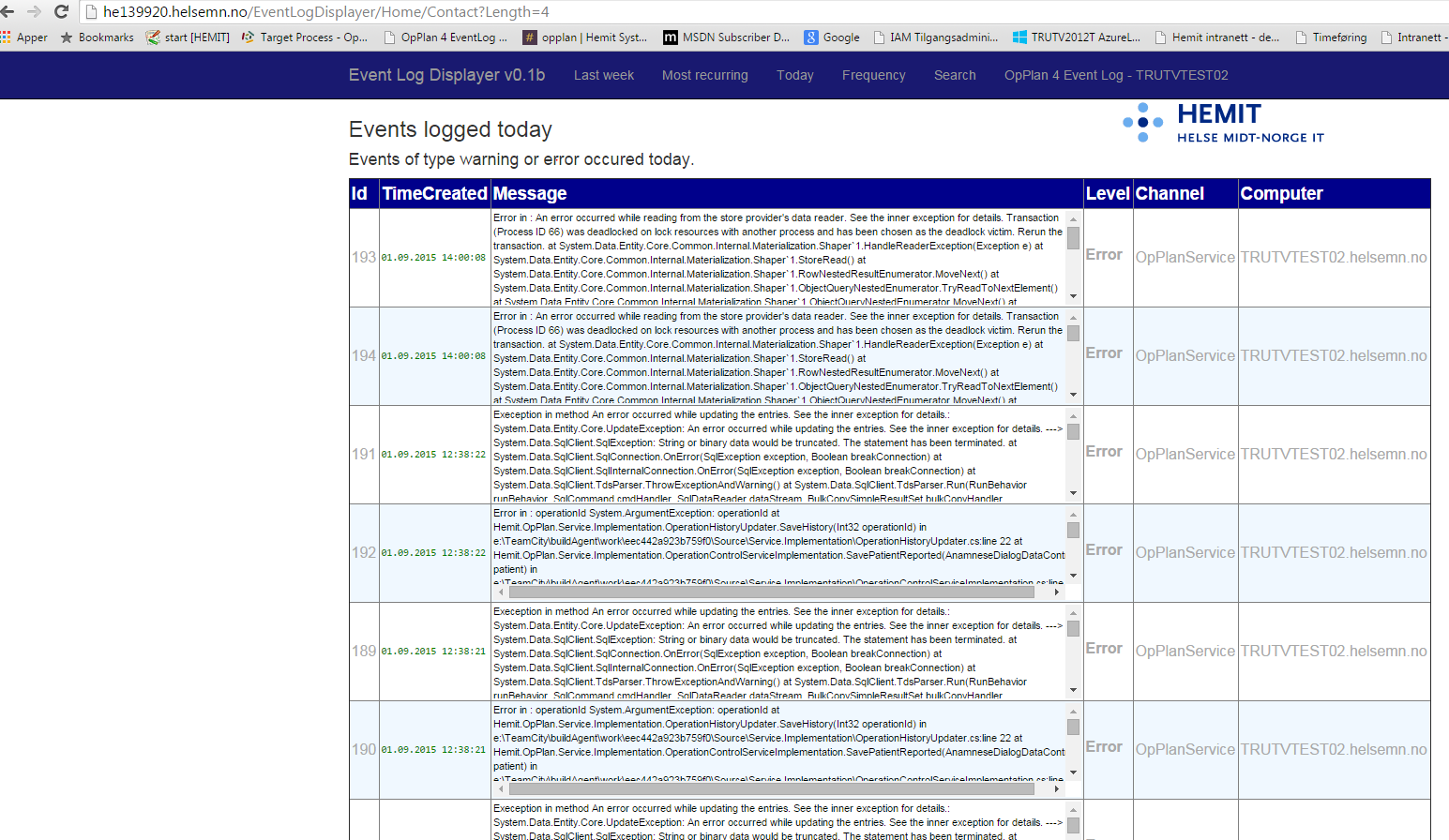
(Link is not active) This web site targets the server MYSERVER, Event Log name is set to MyLogName.

Screenshots of Event Log Displayer


It is easy to monitor another server, but note that the Remote Event Log feature must be added to the server.

Scheduling task to harvest the Event Log remotely
Sample task from Task Scheduler
The following task will set up a hourly schedule, harvesting event log from the remote computer.


<?xml version="1.0" encoding="UTF-16"?>
<Task version="1.2" xmlns="http://schemas.microsoft.com/windows/2004/02/mit/task">
  <RegistrationInfo>
    <Date>2015-08-28T20:02:29.8065626</Date>
    <Author>somedomain\someuser-he</Author>
  </RegistrationInfo>
  <Triggers>
    <CalendarTrigger>
      <Repetition>
        <Interval>PT1H</Interval>
        <StopAtDurationEnd>false</StopAtDurationEnd>
      </Repetition>
      <StartBoundary>2015-08-28T00:00:00</StartBoundary>
      <Enabled>true</Enabled>
      <ScheduleByDay>
        <DaysInterval>1</DaysInterval>
      </ScheduleByDay>
    </CalendarTrigger>
  </Triggers>
  <Principals>
    <Principal id="Author">
      <UserId>somedomain\someuser</UserId>
      <LogonType>InteractiveToken</LogonType>
      <RunLevel>LeastPrivilege</RunLevel>
    </Principal>
  </Principals>
  <Settings>
    <MultipleInstancesPolicy>IgnoreNew</MultipleInstancesPolicy>
    <DisallowStartIfOnBatteries>true</DisallowStartIfOnBatteries>
    <StopIfGoingOnBatteries>true</StopIfGoingOnBatteries>
    <AllowHardTerminate>true</AllowHardTerminate>
    <StartWhenAvailable>false</StartWhenAvailable>
    <RunOnlyIfNetworkAvailable>false</RunOnlyIfNetworkAvailable>
    <IdleSettings>
      <StopOnIdleEnd>true</StopOnIdleEnd>
      <RestartOnIdle>false</RestartOnIdle>
    </IdleSettings>
    <AllowStartOnDemand>true</AllowStartOnDemand>
    <Enabled>true</Enabled>
    <Hidden>false</Hidden>
    <RunOnlyIfIdle>false</RunOnlyIfIdle>
    <WakeToRun>false</WakeToRun>
    <ExecutionTimeLimit>P3D</ExecutionTimeLimit>
    <Priority>7</Priority>
  </Settings>
  <Actions Context="Author">
    <Exec>
      <Command>Powershell</Command>
      <Arguments>C:\Users\toaurs-he\Documents\Powershell\HarvestEventLog.ps1</Arguments>
    </Exec>
  </Actions>
</Task>


The task above defined in the XML can be saved to an XML file, adjusted as necessary and imported in Task Scheduler: The task can also be adjusted using the command line (as Administrator) with the command:

schtasks.exe /Create /XML task.xml /tn taskname

Enabling Remote Event Log feature on target server Remote Event Log Management is enabled in the Windows Firewall with Advanced Security as an Inbound Rule, predefined as Remote Event Log Management.

Tick off all the three choices here:


SQL Script

The following script creates the database required to persist data to the database.


USE [OpPlan4EventLog] GO /****** Object: Table [dbo].[Events] Script Date: 02.09.2015 20:03:14 ******/ SET ANSI_NULLS ON GO SET QUOTED_IDENTIFIER ON GO CREATE TABLE [dbo].[Events]( [Id] [INT] NOT NULL, [Message] [nvarchar](MAX) NULL, [TimeCreated] [datetime] NULL, [Level] [INT] NULL, [Channel] [nvarchar](300) NULL, [Computer] [nvarchar](300) NULL, CONSTRAINT [PK_Events] PRIMARY KEY CLUSTERED ( [Id] ASC)WITH (PAD_INDEX = OFF, STATISTICS_NORECOMPUTE = OFF, IGNORE_DUP_KEY = OFF, ALLOW_ROW_LOCKS = ON, ALLOW_PAGE_LOCKS = ON) ON [PRIMARY]) ON [PRIMARY] TEXTIMAGE_ON [PRIMARY] GO

Sample MVC web solution


The EventLogDisplayer is a MVC web solution and is available here. Available on OneDrive here:

Sample MVC web solution [40,15 MB | Zip-file | Visual Studio 2013 Solution ]

Thursday, 27 August 2015

EventLogParserUtility - Parsing Event Log Files and exporting to Excel

Parsing Event Log Files

Filtering and searching an event log using the Event Log Viewer (eventvwr) is often unpractical and it is quicker to save the selected content of the Event Log to a Event Log File of the format .evtx. This is done using the following classes in System.Diagnostics.Eventing.Reader:
  • EventLogReader
  • EventLogQuery
  • EventLogRecord
The following code is a console line application written in C# generating excel files with filtered contents of the event log file.

using System;
using System.Collections.Generic;
using System.Diagnostics;
using System.Diagnostics.Eventing.Reader;
using System.Drawing;
using System.IO;
using System.Linq;
using System.Text;
using System.Text.RegularExpressions;
using System.Threading;
using OfficeOpenXml;
using OfficeOpenXml.Style;

namespace EventLogParserUtility
{
    class Program
    {

        private static void Main(string[] args)
        {

            bool outputToExcel = false;
            string eventLogFileName = null;
            string excelFileName = null;

            Console.WriteLine("Starting analysis of target Event Log file: ");

            Timer timer = new Timer(TimerTick, null, 0, 100);


            if (args.Any(a => a.StartsWith(@"-f:")))
            {
                eventLogFileName = args.First(a => a.StartsWith(@"-f:")).Split(':')[1];
            }

            if (string.IsNullOrEmpty(eventLogFileName))
            {
                ShowUsageInfo();
                return;
            }

            var events = from l in LogRecordCollection(eventLogFileName)
                         where l.Properties.Any()
                               && l.Properties[0].Value != null
                         select l;

            if (args.Any(a => a.StartsWith(@"-t:")))
            {
                string timeArgument = args.First(a => a.StartsWith(@"-t:")).Split(':')[1];
                DateTime fromTime;
                if (DateTime.TryParse(timeArgument, out fromTime))
                {
                    events = events.Where(e => e.TimeCreated >= fromTime);

                } //if 
            } //if 

            if (args.Any(a => a.StartsWith(@"-m:")))
            {
                string messageArgument = args.First(a => a.StartsWith(@"-m:")).Split(':')[1].Replace("'", "");
                events =
                    events.Where(
                        e => Regex.IsMatch(e.Properties[0].Value.ToString(), messageArgument, RegexOptions.IgnoreCase));
            }

            if (args.Any(a => a.StartsWith(@"-excel:")))
            {
                excelFileName = DateTime.Now.ToString("ddmmyyyyhhmmss") + args.First(a => a.StartsWith(@"-excel:")).Split(':')[1].Replace("'", "");
                outputToExcel = true;
            }


            if (!outputToExcel)
            {
                foreach (var e in DistinctBy(events, e => e.RecordId).OrderByDescending(e => e.TimeCreated))
                {
                    Console.WriteLine(Environment.NewLine + e.TimeCreated + Environment.NewLine +
                                      GetFilteredValue(e.Properties[0].Value, args));
                    Console.WriteLine("Hit enter to go to NEXT.");
                    Console.ReadKey();
                }
            }
            else
            {
                using (var excelPackage = new ExcelPackage(new FileInfo(Path.Combine(Directory.GetCurrentDirectory(), excelFileName))))
                {
                    excelPackage.Workbook.Worksheets.Add("Eventlog matches:" + DateTime.Now.ToShortDateString());

                    var workSheet = excelPackage.Workbook.Worksheets[1];

                    int rowIndex = 2;

                    workSheet.Cells[1, 1].Value = "Level";
                    workSheet.Cells[1, 2].Value = "Date and Time";
                    workSheet.Cells[1, 3].Value = "Source";
                    workSheet.Cells[1, 4].Value = "Details";
                    workSheet.Cells[1, 5].Value = "Computer Name";
                    workSheet.Cells[1, 6].Value = "Filtered Details";

                    workSheet.Cells[1, 1, 1, 6].Style.Font.Bold = true;
                    workSheet.Cells[1, 1, 1, 6].Style.Font.Size = 14;


                    foreach (var e in DistinctBy(events, e => e.RecordId).OrderByDescending(e => e.TimeCreated))
                    {
                        workSheet.Cells[rowIndex, 1].Value = e.Level;
                        workSheet.Cells[rowIndex, 2].Value = e.TimeCreated;
                        workSheet.Cells[rowIndex, 2].Style.Numberformat.Format = "dd.mm.yyyy hh:mm";
                        workSheet.Cells[rowIndex, 3].Value = e.ProviderName;
                        workSheet.Cells[rowIndex, 4].Value = e.Properties[0].Value;
                        workSheet.Cells[rowIndex, 5].Value = e.MachineName;
                        workSheet.Cells[rowIndex, 6].Value = GetFilteredValue(e.Properties[0].Value, args);
                        workSheet.Cells[rowIndex, 1, rowIndex, 5].Style.Fill.PatternType = ExcelFillStyle.Solid;
                        workSheet.Cells[rowIndex, 1, rowIndex, 5].Style.Fill.BackgroundColor.SetColor(rowIndex % 2 == 0
                            ? Color.AliceBlue
                            : Color.White);
                        rowIndex++;
                    }


                    workSheet.Cells[workSheet.Dimension.Address].AutoFitColumns();

                    excelPackage.Save();

                }


                Process.Start(Path.Combine(Directory.GetCurrentDirectory(), excelFileName));

            }

            timer.Dispose();

            Console.WriteLine("All done. Press the any key to continue ..");
            Console.ReadKey();


        }

        private static string GetFilteredValue(object value, string[] args)
        {
            if (args.Any(a => a.StartsWith("-o:")))
            {
                var pattern = string.Join(":", args.First(a => a.StartsWith("-o:")).Split(':').Skip(1)).Replace("&lt", "<")
                    .Replace("&gt;", ">").Replace("'", "").Trim();
                Regex filterMatch =
                    new Regex(pattern, RegexOptions.IgnoreCase);
                Match mc = filterMatch.Match(value.ToString());

                StringBuilder sb = new StringBuilder();

                foreach (Group group in mc.Groups)
                {
                    sb.Append(group.Value + " ");
                }

                return sb.ToString();
            }
            return value.ToString();
        }

        private static void TimerTick(object state)
        {
            Console.Write(".");
        }

        private static void ShowUsageInfo()
        {
            Console.WriteLine("Example Usage: EventLogParserUtility -f:MyEventLogFile.evtx "
                + Environment.NewLine + "Additional parameters: -t:1.1.2015 [TimeCreated larger than] "
                + Environment.NewLine + "-m:MySearchKey [Properties[0].Value or Message contains] "
                + Environment.NewLine + "-excel:SomeFileName.xlsx [Outputting to Excel file]"
                + Environment.NewLine + "-o:MyFilter [Filter output by regex]");
        }

        static IEnumerable<EventLogRecord> LogRecordCollection(string filename, string xpathquery = "*")
        {
            var eventLogQuery = new EventLogQuery(filename, PathType.FilePath, xpathquery);

            using (var eventLogReader = new EventLogReader(eventLogQuery))
            {
                EventLogRecord eventLogRecord;

                while ((eventLogRecord = (EventLogRecord)eventLogReader.ReadEvent()) != null)
                {
                    yield return eventLogRecord;
                }
            }
        }

        static IEnumerable<T> DistinctBy<T, TKey>(IEnumerable<T> inputList, Func<T, TKey> keySelector, IEqualityComparer<TKey> comparer = null)
        {
            var distinctItems = inputList.GroupBy(keySelector, comparer).Select(g => g.First()).ToList();
            return distinctItems;
        }

    }
}


The command line application is able to output content of the event log file that matches a given search term key and also output a filtered column specified by a Regex.


cd EventLogParserUtility\bin\Debug EventLogParserUtility -f:EventLogs\hendelseslogg.evtx -m:'OfficialId' -excel:MyOutputExcelFile.xlsx -o:'<OfficialId>(?<x>.*)</OfficialId>' Supported switches in EventLogParserUtility:

-f: File name of event log file (obligatory column) -m: Search messages in event log specified by search term. It is possible to type in a regex here (optional parameter) -excel: filename to output to excel (optional parameter) -o: Regular expression to use to filter the message additionally for targeted output (will be displayed in filtered column) -t: Filtering to output content where TimeCreated of Event Log Item above specified date (optional parameter, specify as datetime value To use this utilty, put the arguments of the switches inside quotes if the arguments got spaces.

Monday, 20 July 2015

Calculating PI in C# using Monte-Carlo simulation

The following code sample shows numeric compuation of the number PI using Monte-Carlo simulation. First, a sequential approach is used. Then the Parallel.For construct in TPL is used. In the end, we use Tasks in TPL.


To compute PI we use the same approach. We consider the unit circle inscribed in a square around origo with corners at coordinates (-1,-1), (-1, 1), (1,1) and (1,-1). The number PI can be defined as generating random numbers and looking at the ratio of the numbers inside the circle M divided upon the total numbers generated N. We know that the following can then be expected:

(a) M / N = PI / 4

Why? Because the square has got an area equal to four, remember that the unit square got sides equal to the number 2 and its area is therefore 2 * 2 = 4. The unit circle got a radius of 1, hence its area is PI * 1^2 = PI. The ratio to be expected between the areas of the unit circle and unit rectangle therefore gives the formula above. We can further compute the approximated numeric value of PI equal to:

(b) PI = 4 * (M / N)

This expression (b) is directly from the previous expression (a)
Let's move on the code sample, review the code. I have included a screen shot at the end. The conclusion I got after testing showed after several runs shows that the sequential version runs in about 3.5 seconds on my eight core system with about half the time, about 1.8 seconds using Parallel.For - The last version using Tasks and Tasks.WaitAll give about 1.7 seconds and the quickest compuation, about twice as fast. The iterations I used in the demo was 80 million.
Here is the code written in C#:

using System;
using System.Collections.Generic;
using System.Diagnostics;
using System.Linq;
using System.Text;
using System.Threading;
using System.Threading.Tasks;

namespace MonteCarloPiApproximation
{
    class Program
    {
        static int numberOfCores = Environment.ProcessorCount; 
        static int iterations = 10000000 * numberOfCores;

        static void Main(string[] args)
        {
            Console.WriteLine("Monte Carlo numeric simulation of PI");
            Console.WriteLine("Iteration limit: " + iterations);
            Console.WriteLine("Number of processor cores on system: " + Environment.ProcessorCount);
            var sw = new Stopwatch();
            sw.Start();

            Console.WriteLine("\nMONTE CARLO SIMULATION");

            MonteCarloPiApproximationSerialSimulation();
            sw.Stop();

            Console.WriteLine("Serial simulation: (ms)" + sw.ElapsedMilliseconds);
            Console.WriteLine();

            sw.Restart();

            Console.WriteLine("\nMONTE CARLO SIMULATION");
            MonteCarloPiApproximationParallellForSimulation(); 

            sw.Stop();

            Console.WriteLine("Parallell simulation using Parallel.For: (ms)" + sw.ElapsedMilliseconds);
            Console.WriteLine();

            sw.Restart();

            Console.WriteLine("\nMONTE CARLO SIMULATION");

            MonteCarloPiApproximationParallelTasksSimulation(); 

            Console.WriteLine("Parallell simulation using parallell Tasks: (ms)" + sw.ElapsedMilliseconds);
            Console.WriteLine();

            sw.Stop();           

            Console.WriteLine("Press Enter Key");


            Console.ReadKey(); 
        }

        private static void MonteCarloPiApproximationParallelTasksSimulation()
        {
            double piApproximation = 0;
            int inCircle = 0;
            double x, y = 0;

            int[] localCounters = new int[numberOfCores];
            Task[] tasks = new Task[numberOfCores];

            for (int i = 0; i < numberOfCores; i++)
            {
                int procIndex = i; //closure capture 
                tasks[procIndex] = Task.Factory.StartNew(() =>
                {
                    int localCounterInside = 0;

                    Random rnd = new Random();

                    for (int j = 0; j < iterations / numberOfCores; j++)
                    {
                        x = rnd.NextDouble();
                        y = rnd.NextDouble();
                        if (Math.Sqrt(x * x + y * y) <= 1.0)
                            localCounterInside++;
                    } 
                    localCounters[procIndex] = localCounterInside;

                });               
            }

            Task.WaitAll(tasks);
            inCircle = localCounters.Sum(); 

            piApproximation = 4 * ((double)inCircle / (double)iterations);

            Console.WriteLine();
            Console.WriteLine("Approximated Pi = {0}", piApproximation.ToString("F8"));
           
        }      

        private static void MonteCarloPiApproximationParallellForSimulation()
        {
            double piApproximation = 0;
            int inCircle = 0;
            double x, y = 0;
                   
            Parallel.For(0, numberOfCores, new ParallelOptions{ MaxDegreeOfParallelism = numberOfCores }, i =>
            {
              
                int localCounterInside = 0;

                Random rnd = new Random(); 

                for (int j = 0; j < iterations / numberOfCores; j++)
                {
                    x = rnd.NextDouble();
                    y = rnd.NextDouble();
                    if (Math.Sqrt(x*x+y*y) <= 1.0)
                        localCounterInside++;                                                        
                }

                Interlocked.Add(ref inCircle, localCounterInside); 
                            
            }); 

            piApproximation = 4 * ((double)inCircle / (double)iterations);

            Console.WriteLine();
            Console.WriteLine("Approximated Pi = {0}", piApproximation.ToString("F8"));
            
        }

        private static void MonteCarloPiApproximationSerialSimulation()
        {
            double piApproximation = 0;
            int total = 0;
            int inCircle = 0; 
            double x,y = 0;
            Random rnd = new Random(); 

            while (total < iterations)
            {
                x = rnd.NextDouble(); 
                y = rnd.NextDouble();

                if ((Math.Sqrt(x*x+y*y) <= 1.0))
                    inCircle++;

                total++;                
                piApproximation =  4 * ((double)inCircle / (double)total); 
            } //while 


            Console.WriteLine();
            Console.WriteLine("Approximated Pi = {0}", piApproximation.ToString("F8"));

        }


    }
}


Wednesday, 15 July 2015

Data block types in Task Parallel Library

The following code sample shows data block types in Task Parallel Libary (TPL). The code is written in C# and can be run in a simple Console Application. Dataflow in TPL makes it possible to build actor-based programming and orchestrate coarse-grained dataflow and pipelining tasks, maintaining robustness and supporting concurrency-enabled applications. This makes it easier to construct high-performance, low latency systems.

using System;
using System.Collections.Generic;
using System.Linq;
using System.Text;
using System.Threading;
using System.Threading.Tasks;
using System.Threading.Tasks.Dataflow;

namespace TplDataFlowSimpleTests
{
    class Program
    {

        static void Main(string[] args)
        {
            ActionBlockPostingAndFaulting();

            //BufferBlockPostingAndReceiving();

            //BroadCastPostAndMultipleReceive();

            //WriteOnceBlockParallellPostsAndSingleReceive();

            //ActionBlockPostingCompleting();

            //TransformBlockPostingAndProducingOutput(); 

            //TransformManyBlockPostingsAndReceive(); 

            //BatchBlockSeveralBatches();

            //JoinBlockAritmeticCombinations(); 

            //BatchedJoinBlockPropagatingValuesAndException();

            Console.WriteLine("Press the any key to continue ..");
            Console.ReadKey();

        }

        private static void BatchedJoinBlockPropagatingValuesAndException()
        {
            Func<int, int> doWork = n =>
            {
                if (n < 0)
                    throw new ArgumentOutOfRangeException();
                return n;
            };

            var batchedJoinBlock = new BatchedJoinBlock<int, Exception>(7);

            foreach (int i in new int[] {5, 6, -7, -22, 13, 55, 0})
            {
                try
                {
                    batchedJoinBlock.Target1.Post(doWork(i));
                }
                catch (ArgumentOutOfRangeException e)
                {
                    batchedJoinBlock.Target2.Post(e);
                }
            }

            var results = batchedJoinBlock.Receive();

            foreach (int n in results.Item1)
            {
                Console.WriteLine(n);
            }

            foreach (Exception e in results.Item2)
            {
                Console.WriteLine(e.Message);
            }
        }

        private static void JoinBlockAritmeticCombinations()
        {
            var joinBlock = new JoinBlock<int, int, char>(new GroupingDataflowBlockOptions{ Greedy = true});

            joinBlock.Target1.Post(3);
            joinBlock.Target1.Post(6);

            joinBlock.Target2.Post(5);
            joinBlock.Target2.Post(4);

            joinBlock.Target3.Post('+');
            joinBlock.Target3.Post('-');

            for (int i = 0; i < 2; i++)
            {
                var data = joinBlock.Receive();

                switch (data.Item3)
                {
                    case '+':
                        Console.WriteLine("{0} + {1} = {2}", data.Item1, data.Item2, data.Item1 + data.Item2);
                        break;
                    case '-':
                        Console.WriteLine("{0} - {1} = {2}", data.Item1, data.Item2, data.Item1 - data.Item2);
                        break;
                    default:
                        Console.WriteLine("Unknown operator '{0}'.", data.Item3);
                        break;
                } //switch 
            } //for 

        }

        private static void BatchBlockSeveralBatches()
        {
            var batchBlock = new BatchBlock<int>(10);

            for (int i = 0; i < 13; i++)
            {
                batchBlock.Post(i);
            }

            batchBlock.Complete();


            Console.WriteLine("The elements of the first batch are: [{0}] ", string.Join(",", batchBlock.Receive()));
            Console.WriteLine("The elements of the second batch are: [{0}]", string.Join(",", batchBlock.Receive()));
        }

        private static void TransformManyBlockPostingsAndReceive()
        {
            var transformManyBlock = new TransformManyBlock<string, char>(s => s.ToCharArray());

            transformManyBlock.Post("Hello");
            transformManyBlock.Post("World");

            for (int i = 0; i < ("Hello" + "World").Length; i++)
            {
                Console.WriteLine(transformManyBlock.Receive());
            }
        }

        private static void TransformBlockPostingAndProducingOutput()
        {
            var transformBlock = new TransformBlock<int, double>(n => Math.Sqrt(n));

            transformBlock.Post(10);
            transformBlock.Post(20);
            transformBlock.Post(30);

            for (int i = 0; i < 3; i++)
            {
                Console.WriteLine(transformBlock.Receive());
            }
        }

        private static void ActionBlockPostingCompleting()
        {
            var cts = new CancellationTokenSource();
            var actionBlock = new ActionBlock<int>(n =>
            {
                Console.WriteLine(n);
                Thread.Sleep(1000);
                if (n > 50)
                    cts.Cancel();
            }, new ExecutionDataflowBlockOptions{ MaxDegreeOfParallelism = 2, MaxMessagesPerTask = 1, CancellationToken = cts.Token });

            for (int i = 0; i < 10; i++)
            {
                actionBlock.Post(i*10); 
         
            }

            actionBlock.Complete();
            try
            {
                actionBlock.Completion.Wait(cts.Token);
            }
            catch (OperationCanceledException ex)
            {
                Console.WriteLine(ex.Message);
            }
        }

        private static void WriteOnceBlockParallellPostsAndSingleReceive()
        {
            var writeOnceBlock = new WriteOnceBlock<string>(null);

            Parallel.Invoke(
                () => writeOnceBlock.Post("Message 1"),
                () => writeOnceBlock.Post("Message 2"),
                () => writeOnceBlock.Post("Message 3"));

            Console.WriteLine(writeOnceBlock.Receive());
        }

        private static void BroadCastPostAndMultipleReceive()
        {
            var broadcastBlock = new BroadcastBlock<double>(null);

            broadcastBlock.Post(Math.PI);

            for (int i = 0; i < 3; i++)
            {
                Console.WriteLine(broadcastBlock.Receive());
            }
        }

        private static void BufferBlockPostingAndReceiving()
        {
            var bufferBlock = new BufferBlock<int>();

            for (int i = 0; i < 3; i++)
            {
                bufferBlock.Post(i);
            }

            for (int i = 0; i < 4; i++)
            {
                try
                {
                    Console.WriteLine(bufferBlock.Receive(new TimeSpan(0, 0, 2)));
                }
                catch (TimeoutException tie)
                {
                    Console.WriteLine("Exception of type: {0} with message: {1}", tie.GetType().Name, tie.Message);
                }
            }
        }

        private static void ActionBlockPostingAndFaulting()
        {
            var throwIfNegative = new ActionBlock<int>(n =>
            {
                Console.WriteLine("n = {0}", n);
                if (n < 0)
                    throw new ArgumentOutOfRangeException();
            });

            throwIfNegative.Completion.ContinueWith(
                task => { Console.WriteLine("The status of the completion task is '{0}'", task.Status); });

            throwIfNegative.Post(0);
            throwIfNegative.Post(-1);
            throwIfNegative.Post(1);
            throwIfNegative.Post(2);

            throwIfNegative.Complete();

            try
            {
                throwIfNegative.Completion.Wait();
            }
            catch (AggregateException ae)
            {
                ae.Handle(e =>
                {
                    Console.WriteLine("Encountered {0}: {1}", e.GetType().Name, e.Message);
                    return true;
                });
            }

          
        }
    }
}